How to Fix ERR_SSL_PROTOCOL_ERROR in Chrome on Windows 11
Seeing ERR_SSL_PROTOCOL_ERROR in Chrome? Follow beginner-friendly Windows 11 troubleshooting steps to identify secure connection problems and find the right fix.
Software · By Eshant Verma · Published
You're trying to open a website in Google Chrome, but instead of the page, you see:
This site can't provide a secure connection
Chrome may also display the error code ERR_SSL_PROTOCOL_ERROR.
This error means Chrome couldn't establish the secure HTTPS connection required to open the website.
The difficult part is identifying why. The problem might involve Chrome, your Windows 11 computer, your network, or the website itself. Trying random fixes can waste time and sometimes create new problems.
This guide walks you through eight troubleshooting methods and shows you how to interpret the results so you can focus on the most likely cause.
Important: You don't need to disable browser security, ignore certificate warnings, or install unfamiliar software to follow this guide.
Quick Navigation: Find the Right Fix
Not sure where to start? Use the section headings below to find the troubleshooting steps most relevant to your problem.
Which Fix Should You Try First? — Identify the best starting point based on your symptoms.
What Does ERR_SSL_PROTOCOL_ERROR Mean? — Understand the error and its common causes.
Before You Begin — Check whether the problem involves Chrome, Windows, your network, or the website.
Why Does ERR_SSL_PROTOCOL_ERROR Happen on Only One Website? — Understand website-specific failures.
Fixes 1–3: Chrome Troubleshooting — Update Chrome, test Incognito mode, and check extensions.
Fixes 4–5: Windows and Browsing Data — Check your computer's clock and relevant browsing data.
Fixes 6–8: Connection and Security Troubleshooting — Investigate VPNs, proxies, antivirus software, and network problems.
Advanced Troubleshooting and Safety — Understand DNS-related checks, unsafe shortcuts, and when to contact support.
Frequently Asked Questions — Find answers to common SSL protocol error questions.
Which Fix Should You Try First?
Before changing any settings, identify what happens when you open the affected website.
Situation 1: Only one website displays ERR_SSL_PROTOCOL_ERROR
Start with: The checks under Before You Begin.
Try opening the same website in Microsoft Edge. If possible, compare it on another device and trusted network.
Why: A problem affecting one website may originate from that website's HTTPS configuration. However, browser extensions and network filters can also affect individual websites.
Situation 2: Chrome fails, but Microsoft Edge works
Start with: Fixes 1, 2, and 3.
Update Chrome, test Incognito mode, and review extensions.
Why: When another browser can access the website on the same computer and network, Chrome-specific settings become more relevant.
Situation 3: Several HTTPS websites fail
Start with: Fixes 4, 6, and 7.
Check Windows settings, VPN or proxy configurations, and security software.
Why: Multiple failures may indicate a broader problem affecting secure connections.
Situation 4: The error started after enabling a VPN
Start with: Fix 6.
Review the VPN's connection status, settings, and recent updates.
Why: The timing makes the VPN a reasonable first suspect, although it doesn't prove the VPN caused the error.
Situation 5: The website fails on multiple devices and independent networks
Start with: The section Why Does ERR_SSL_PROTOCOL_ERROR Happen on Only One Website?
Why: If other websites work normally, a website-side issue becomes more likely.
These situations are diagnostic clues, not guaranteed explanations. Start with the closest match and move to another fix only when your results justify it.
What Does ERR_SSL_PROTOCOL_ERROR Mean?
When you visit a website beginning with https://, Chrome attempts to create an encrypted connection.
Modern secure websites use TLS (Transport Layer Security), although people often still refer to this technology as SSL.
Before exchanging protected information, the browser and website perform a process called the TLS handshake.
During this process, they establish how the encrypted connection will work and validate relevant security information.
If the process fails, Chrome may display ERR_SSL_PROTOCOL_ERROR.
According to Cloudflare's technical documentation, TLS configuration issues and interference with secure connections are among the possible causes.
Some procedures in Cloudflare's documentation are intended for website administrators rather than everyday Chrome users.
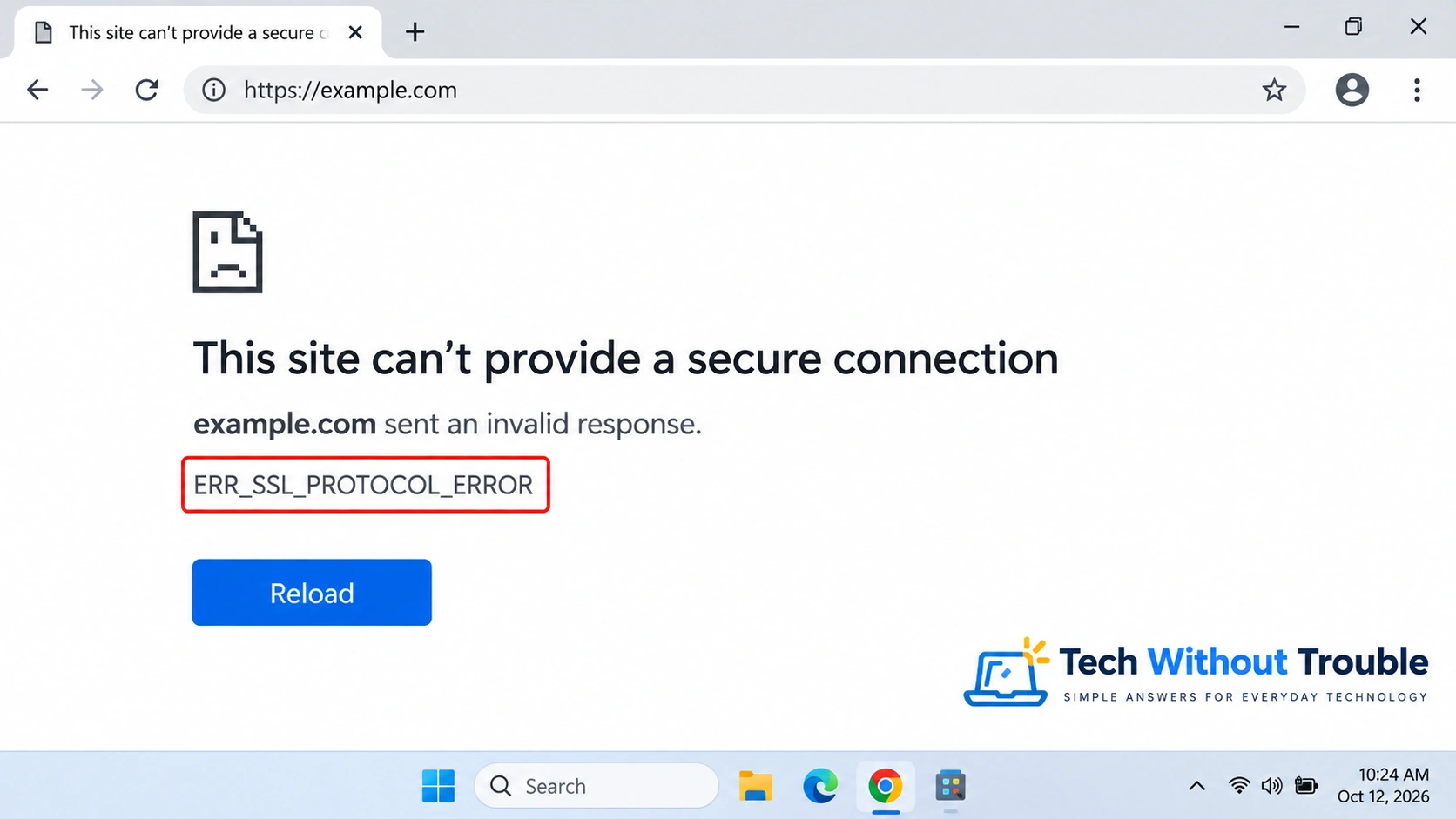
Common causes of ERR_SSL_PROTOCOL_ERROR
Possible causes include:
Website configuration problems: The server may have incompatible or incorrectly configured TLS settings.
Chrome extensions: Some extensions modify website requests or browser traffic.
Security software: HTTPS inspection may interfere with encrypted connections.
VPN or proxy settings: These services can change how connections reach websites.
Network interference: Routers, internet providers, or managed networks may affect secure traffic.
Incorrect system time: A significantly incorrect clock can cause certificate validation problems, although these usually produce more specific certificate errors.
The error code alone doesn't identify which cause applies.
Is ERR_SSL_PROTOCOL_ERROR the same as a certificate error?
Not exactly.
For example, NET::ERR_CERT_AUTHORITY_INVALID indicates a certificate trust problem.
ERR_SSL_PROTOCOL_ERROR describes a broader failure to establish a secure connection.
Both relate to HTTPS, but they aren't interchangeable.
If Chrome displays a certificate or privacy warning, don't bypass it merely to access the website.
Before You Begin: Identify Where the Problem Occurs
These four checks help you decide whether to investigate Chrome, Windows, the network, or the website.
Check 1: Verify the website address
Open Google Chrome.
Examine the website address for spelling mistakes or unexpected characters.
Press Ctrl + R to reload the page.
Check whether the error remains.
If the website opens, no additional troubleshooting is necessary.
Check 2: Try other HTTPS websites
Open two or three familiar secure websites.
If they work: The problem may be specific to the original website or how your browser or network handles it.
If several fail: Investigate broader browser, system, security, or network causes.
Different error code? If Chrome displays DNS_PROBE_FINISHED_NXDOMAIN, use our guide to fix DNS_PROBE_FINISHED_NXDOMAIN in Chrome.
DNS resolution errors require different troubleshooting from SSL protocol failures.
Check 3: Compare Chrome with Microsoft Edge
Open Microsoft Edge.
Enter the same website address.
Check whether it loads.
Works in Edge but not Chrome: Prioritize Chrome updates, extensions, and profile-related issues.
Fails in both: Investigate system-wide settings, network conditions, or the website.
This comparison doesn't prove the cause because Chrome and Edge can still behave differently even when the underlying problem is shared.
Check 4: Check for a public Wi-Fi sign-in
Hotels, airports, and cafés sometimes require a network sign-in before allowing normal internet access.
If you're using public Wi-Fi, confirm whether the network has a legitimate sign-in requirement.
Don't install unknown certificates or enter sensitive information into suspicious pages claiming to repair your connection.
Google provides additional guidance in its official Chrome connection troubleshooting documentation.
Why Does ERR_SSL_PROTOCOL_ERROR Happen on Only One Website?
A single-website failure deserves a different approach from a problem affecting every secure website.
For example, imagine that:
Chrome cannot open one particular website.
Microsoft Edge also fails to open it.
The website fails on your phone using mobile data.
Other HTTPS websites work normally.
These hypothetical results would make a website-side issue more likely.
The website might have a TLS configuration or certificate deployment problem that visitors cannot repair themselves.
However, if the website opens on another network or in another browser, local factors still deserve investigation.
Practical recommendation: When a website fails across independent devices and networks, contact its owner before spending time changing unrelated Windows settings.
Fix 1: Update and Restart Google Chrome
An outdated browser may have bugs or compatibility problems that affect website connections.
Updating Chrome is a low-risk starting point when the error appears to be browser-specific.
How to update Chrome
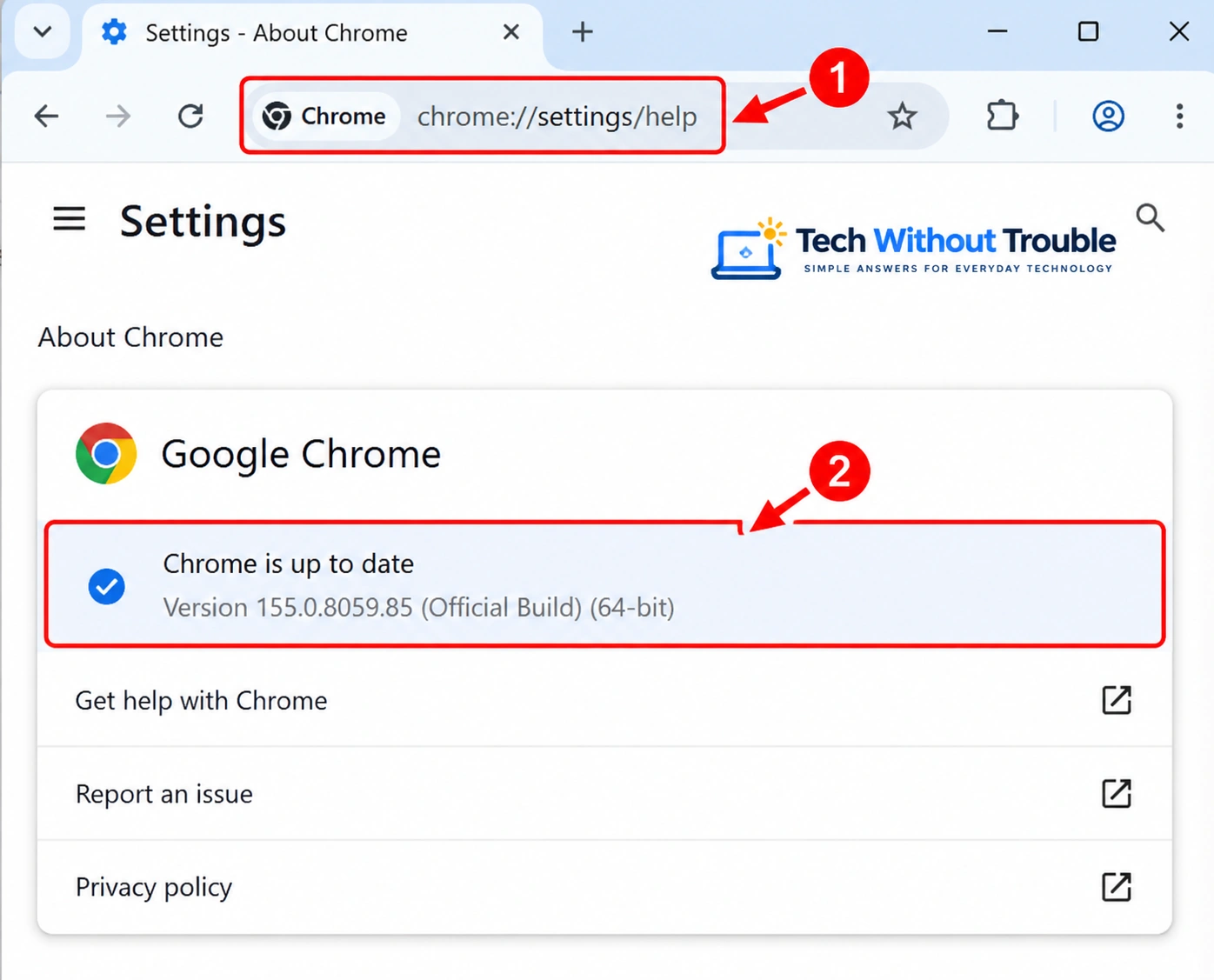
Open Chrome.
Enter
chrome://settings/helpin the address bar.Press Enter.
Allow Chrome to check for updates.
If an update is installed, select Relaunch.
Open the affected website again.
Before restarting: Save unfinished work. Relaunching may interrupt active sessions, and Incognito windows won't be restored.
If Chrome is already updated, close and reopen it.
See Google's official Chrome update instructions.
What does the result tell you?
Website works after updating: A browser update or restart may have resolved the problem.
Error continues: An outdated Chrome version probably wasn't the only cause. Continue with the next relevant test.
When to skip this fix: If the website consistently fails on several independent devices and networks while other websites work, updating Chrome is unlikely to repair a website-side configuration issue.
Fix 2: Test the Website in Incognito Mode
Incognito mode provides a separate browsing session with its own temporary cookies and site data.
It can help distinguish problems involving your regular Chrome profile, extensions, or stored website information.
It doesn't bypass HTTPS security.
How to test Incognito mode
Open Chrome.
Press Ctrl + Shift + N.
Enter the affected website address in the new Incognito window.
Check whether it opens.
What does the result tell you?
Works in Incognito but fails in normal Chrome:
Your regular profile, extensions, cookies, or stored site information may be involved.
Continue with Fix 3 and, if needed, Fix 5.
Fails in both modes:
The cause may be broader than ordinary profile-specific data.
However, some extensions can be allowed to run in Incognito, so this test doesn't eliminate every extension-related possibility.
Important: A successful Incognito test doesn't identify the cause by itself. Extensions, cookies, and other profile-specific differences may still need separate investigation.
When to skip this fix: If the website fails on different devices and independent networks, Incognito testing is unlikely to be your most useful first action.
Fix 3: Check Chrome Extensions
Extensions can modify website requests, block content, or interact with browser traffic.
Privacy tools, security extensions, and browser-based VPN extensions may affect individual HTTPS websites.
How to check extensions
Open Chrome.
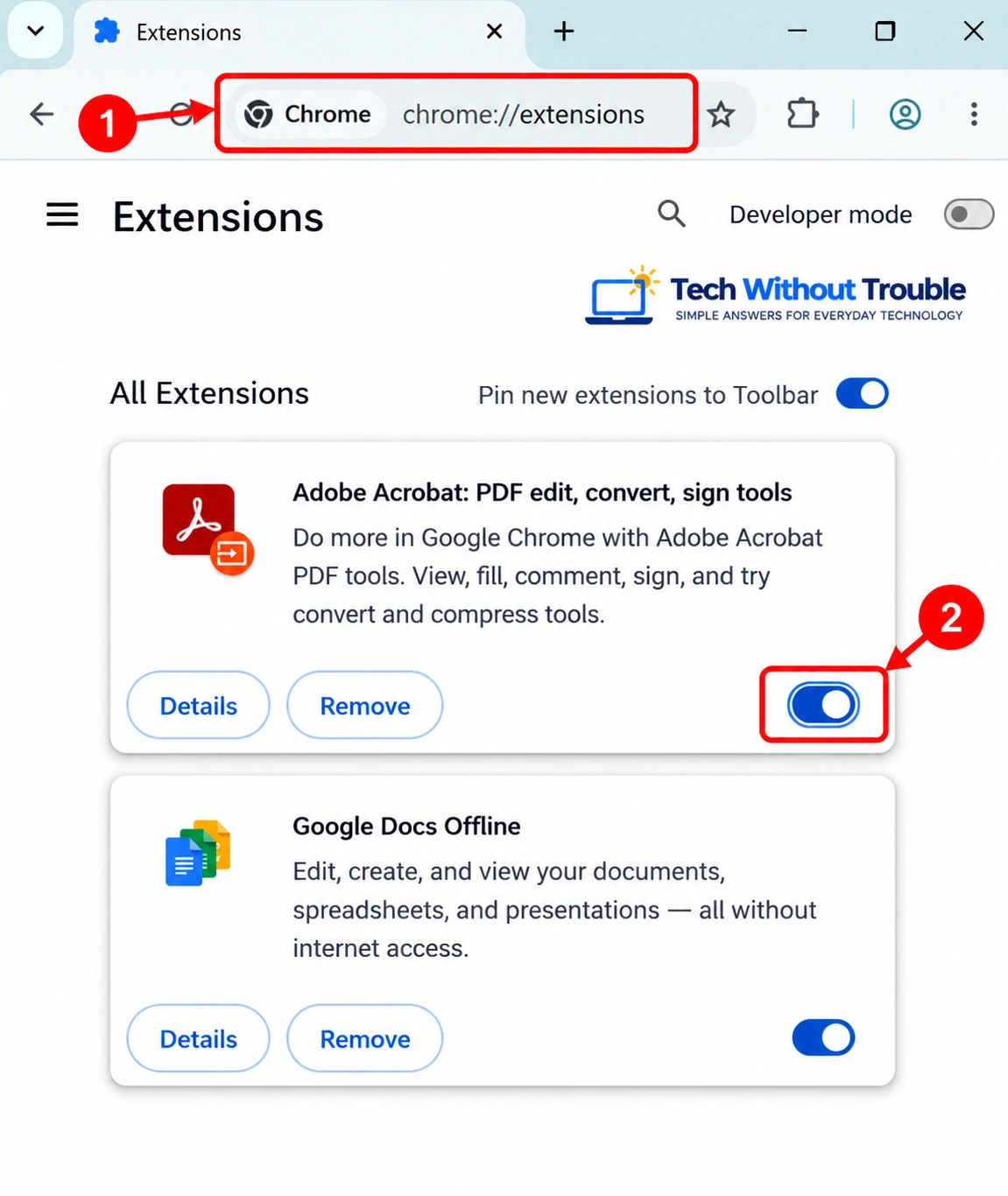
Enter
chrome://extensionsin the address bar.Press Enter.
Review your installed extensions.
Record which extensions are enabled.
Temporarily disable the extensions you want to test.
Reload the affected website.
Don't disable extensions managed by your workplace or school without permission.
If the website starts working
An extension may be involved.
To narrow down which one:
Re-enable one extension.
Reload the website.
Repeat with the remaining extensions.
Check whether the error returns after enabling a particular extension.
If you identify a likely cause, update the extension or review its settings.
Once you've finished testing, restore the extensions you want to keep enabled. Leave a problematic extension disabled until you've updated it or resolved the issue.
If the error continues
Restore the original extension settings and proceed to Fix 4.
What does the result tell you?
If the error consistently disappears when a particular extension is disabled and returns when it is enabled, that provides stronger evidence of an extension-related problem.
A single successful reload isn't enough to establish the cause with certainty.
Google discusses extensions in its Chrome connection-error troubleshooting guidance.
Fix 4: Check the Date and Time in Windows 11
Website certificates have validity periods.
A significantly incorrect computer clock can interfere with certificate validation.
This more commonly produces a certificate-specific error, but checking the clock is quick and safe.
How to check the date and time
Press Windows + I to open Settings.
Select Time & language.
Open Date & time.
Check that the displayed date and time are correct.
Check the Time zone setting and confirm it matches your location.
Turn on Set time automatically if the option is available and appropriate for your device.
If Set time zone automatically is available, you can enable it. Otherwise, select the correct time zone manually.
Select Sync now if that option appears.
Return to Chrome and test the website again.
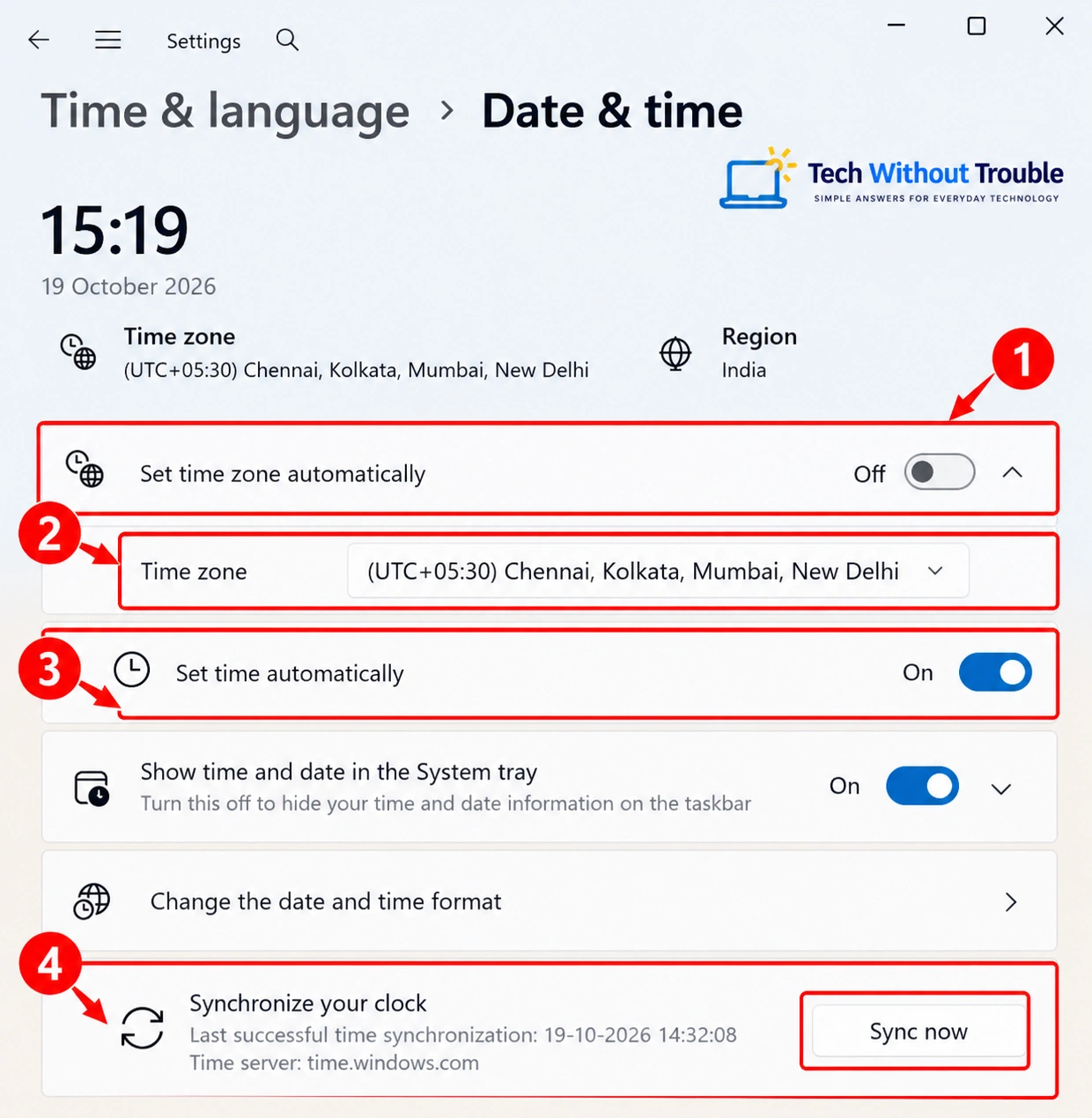
Note: Automatic time-zone detection may be unavailable or restricted on some Windows 11 devices. You can select the correct time zone manually when permitted.
Work or school computer? Contact your administrator if these settings are managed by your organization.
See Microsoft's guidance on Windows date and time settings.
What does the result tell you?
If the computer clock was incorrect and the website works after correcting it, the time setting may have contributed to the problem.
If the clock was already correct, repeatedly changing it is unlikely to help.
When to skip this fix: If your Windows clock is already accurate, move on rather than toggling settings unnecessarily.
Fix 5: Clear Relevant Chrome Browsing Data
Chrome stores cached website files and other information to improve browsing performance.
Sometimes stored data contributes to loading problems.
However, clearing the cache is not a direct repair for a failed TLS handshake.
This step is most relevant when the website works in Incognito but fails in your regular Chrome window.
Before clearing browsing data
Deleting cookies can sign you out of websites.
Removing other categories may affect browsing history, saved information, or site preferences.
Depending on your sync settings, some deletion actions may also affect synchronized information.
Start with cached files only.
How to clear cached files
Open Chrome.
Press Ctrl + Shift + Delete.
In the Delete browsing data window, select an appropriate time range.
Select Cached images and files.
Review all selected checkboxes.
Uncheck categories you don't intend to delete.
Click Delete data.
Test the website again.
The next visit to some websites may be slower because Chrome needs to download their files again.
Should you delete cookies?
Not immediately.
If the website works in Incognito but still fails after clearing cached files, consider removing cookies and site data for the affected website only.
This may sign you out and remove that website's saved preferences.
See Google's desktop instructions for deleting Chrome browsing data.
What does the result tell you?
If the website works after clearing cached files, stored browser information may have contributed.
However, the result doesn't prove the cache was the cause because other conditions may have changed.
When to skip this fix: If the same website fails on multiple devices and networks, deleting Chrome's cache is unlikely to resolve a server-side TLS problem.
Fix 6: Check VPN and Proxy Settings
VPNs and proxies affect how internet traffic reaches websites.
Some also filter or inspect connections.
This fix is particularly useful when the error began after enabling a VPN or changing network settings.
Before changing anything
Don't modify managed workplace or school connections without authorization.
Record your original settings.
Disconnecting a VPN may expose traffic metadata to your local network or internet provider and change your public IP address.
Restore your original configuration after testing unless you've identified an appropriate permanent solution.
How to check a VPN in Windows 11
If you use a separate VPN application, review its own settings first.
For Windows-managed VPN connections:
Press Windows + I.
Open Network & internet.
Select VPN.
Review the configured connections.
If appropriate, temporarily disconnect your personal VPN.
Test the website in Chrome.
If the website works without the VPN, investigate the VPN service or its configuration.
Check the provider's official troubleshooting instructions and available updates.
Reconnect your VPN afterward if you need its protection.
How to check proxy settings
Open Windows Settings.
Select Network & internet.
Open Proxy.
Review the automatic and manual proxy settings.
If you personally configured a proxy, verify its details.
If appropriate, temporarily disable that personal proxy for testing.
Test the website.
Restore your original settings.
What does the result tell you?
If the error consistently appears only when a particular VPN or proxy is active, that service or configuration becomes a stronger suspect.
When to skip this fix: If you don't use a VPN or proxy and haven't changed related settings, move on.
Fix 7: Check Antivirus and HTTPS Filtering
Some antivirus and network security applications inspect encrypted website connections.
Depending on the product, this may be called:
HTTPS scanning
SSL/TLS inspection
Encrypted connection scanning
Web protection
A problem with this process may interrupt a secure connection.
How to investigate safely
Identify your antivirus or internet security application.
Open its dashboard.
Review recent security alerts or blocked-connection notifications.
Check for application updates.
Read the vendor's official HTTPS inspection troubleshooting guidance.
Contact the vendor if the problem began after a security software update.
Do not disable antivirus protection, turn off your firewall, or install unknown certificates just to open a website.
What if you use Windows Security?
Windows 11 includes Windows Security.
Open it from the Start menu and review protection notifications.
If a connection was blocked, investigate the reason before creating an exception.
What does the result tell you?
A relevant security alert, recent update, or confirmed vendor issue may provide evidence that HTTPS inspection is involved.
Without such evidence, don't assume security software is responsible.
Cloudflare also discusses TLS-related problems in its ERR_SSL_PROTOCOL_ERROR documentation. Some advanced procedures are intended for website administrators.
Fix 8: Test Another Network or Restart Your Router
If browser-specific checks haven't helped, comparing networks can reveal whether the problem is connected to your usual internet connection.
This is particularly useful when multiple websites or devices are affected.
Test the website on another network
If possible, connect your Windows 11 computer to a trusted alternative network, such as your phone's mobile hotspot.
Open the same website in Chrome.
Important: Use the exact same URL in both tests, including the subdomain and HTTPS prefix. Different subdomains may use different HTTPS configurations.
Before testing: Mobile hotspots may consume cellular data.
What does the result tell you?
Works on the alternative network:
Your usual Wi-Fi, router, ISP, or network filtering may be involved.
Fails on both networks:
The browser, computer, security software, or website may be responsible.
For a stronger comparison, keep the computer and browser the same while changing only the network.
This reduces the number of variables that change between tests.
How to restart your home router
Only restart a router you own or manage when the symptoms suggest a network problem.
Before restarting: Everyone connected to the router will temporarily lose internet access. Check for active calls, meetings, uploads, or other important tasks.
Save your online work.
Turn off the router or disconnect its power.
Wait approximately 30 seconds.
Restore power.
Wait for the internet connection to return.
Reconnect your computer.
Test the website.
Important: Don't press the factory-reset button. A factory reset may erase important network settings.
When should you skip restarting the router?
If the affected website fails on different devices and independent networks while other websites work normally, restarting your home router is unlikely to help.
A router restart cannot repair a website's TLS configuration or certificate deployment.
Advanced Troubleshooting: When Basic Fixes Don't Work
Use your earlier results to determine whether further troubleshooting is worthwhile.
Don't perform advanced commands simply because they're commonly recommended online.
Should you flush the DNS cache?
Windows stores recently resolved domain-name information in a DNS cache.
Outdated information may occasionally cause connections to reach an unexpected destination or fail.
However, DNS resolution and TLS negotiation are separate processes.
Flushing DNS is not a direct fix for ERR_SSL_PROTOCOL_ERROR.
Consider it when you have a reason to suspect DNS information is outdated, such as a recent website migration or inconsistent address resolution.
How to flush the DNS cache in Windows 11
Open the Start menu.
Search for Command Prompt.
Open Command Prompt. Administrator access is generally not required.
Enter:
ipconfig /flushdnsPress Enter.
Windows should display a message similar to Successfully flushed the DNS Resolver Cache.
Close Command Prompt and test the website again.
This command clears cached DNS lookup information. It doesn't delete personal files or reset Windows networking.
If the command is restricted on a managed computer, contact your administrator rather than bypassing the restriction.
What if Chrome displays ERR_CONNECTION_RESET instead?
ERR_CONNECTION_RESET means the connection was unexpectedly reset.
It isn't the same error as ERR_SSL_PROTOCOL_ERROR, although some underlying network problems may contribute to both.
Follow our guide to fix ERR_CONNECTION_RESET in Chrome if that is the error displayed.
What if Chrome displays ERR_CONNECTION_TIMED_OUT instead?
ERR_CONNECTION_TIMED_OUT means Chrome didn't receive a response within the expected period.
It requires a different troubleshooting approach.
Read our guide to fix ERR_CONNECTION_TIMED_OUT in Chrome on Windows 11.
When should you contact the website owner?
Contact the website owner when:
Only that website fails.
Other HTTPS websites work normally.
The problem occurs across independent devices and networks.
Browser-specific troubleshooting hasn't helped.
Provide the website address, exact error code, when the problem started, and the checks you've completed.
Don't share passwords, authentication cookies, or other sensitive information.
The website administrator may need to investigate its TLS configuration, certificate deployment, or server logs.
When should you contact your ISP or network administrator?
Contact your ISP or administrator when:
Multiple HTTPS websites fail on the same network.
Those websites work on another internet connection.
Several devices on your network are affected.
Your network uses security filtering or HTTPS inspection.
Describe your test results so support staff can narrow down the cause.
What Not to Do When Fixing SSL Errors
Some troubleshooting shortcuts create more risk than the original error.
Avoid these actions:
Don't bypass certificate or privacy warnings. They may indicate an unsafe connection.
Don't disable certificate verification. This weakens protection against impersonated websites.
Don't enable obsolete SSL or TLS protocols. Older protocols have known security weaknesses.
Don't permanently disable antivirus or firewall protection. Use official troubleshooting guidance instead.
Don't install certificates from unknown sources. Unexpected certificate requests can be dangerous.
Don't factory-reset your router without a clear reason. You may erase important configuration settings.
If a website requires insecure browser settings to open, contact its administrator instead of weakening your computer's security.
Frequently Asked Questions
1. Why does Chrome say "This site can't provide a secure connection"?
Chrome displays this message when it cannot establish the required secure HTTPS connection.
If the error code is ERR_SSL_PROTOCOL_ERROR, the secure connection process failed.
The exact cause requires further diagnosis.
2. Can Windows 11 date and time settings cause SSL errors?
Yes. An incorrect computer clock can interfere with certificate validation.
However, this more commonly produces a certificate-specific warning.
3. Will clearing Chrome's cache fix ERR_SSL_PROTOCOL_ERROR?
It may help with certain website-loading problems, particularly when stored browser information is involved.
However, clearing the cache isn't a reliable solution to a TLS handshake failure.
4. Can a VPN or antivirus cause ERR_SSL_PROTOCOL_ERROR?
Yes. VPNs, proxies, security applications, and HTTPS inspection systems can interfere with encrypted connections.
Review relevant settings, updates, and vendor guidance without disabling essential security protections.
5. Is ERR_SSL_PROTOCOL_ERROR the same as ERR_CERT_AUTHORITY_INVALID?
No.
ERR_SSL_PROTOCOL_ERROR describes a secure connection failure.
ERR_CERT_AUTHORITY_INVALID identifies a certificate trust problem.
6. Is ERR_SSL_PROTOCOL_ERROR dangerous?
The error doesn't automatically mean your computer is infected or the website is malicious.
It means Chrome couldn't establish the required secure connection.
Don't bypass security warnings to force access.
7. Why does a website work on my phone but not my Windows 11 computer?
Your devices may use different browsers, network connections, security software, or settings.
For a more useful comparison, connect both devices to the same trusted network.
If only the computer fails, investigate its browser and security configuration.
Final Troubleshooting Checklist
Use this checklist to confirm that you've investigated the most relevant possibilities:
Verify the website address and reload the page.
Check whether one website or several are affected.
Compare Chrome with Microsoft Edge.
Update and restart Chrome.
Test the website in Incognito mode.
Review Chrome extensions.
Confirm Windows 11 date and time settings.
Clear cached files only when the results justify it.
Review personal VPN and proxy settings.
Check security software and HTTPS inspection alerts.
Compare the website on another trusted network.
Restore temporary settings changes after testing.
Contact the appropriate website owner, ISP, or administrator if necessary.
You don't need to complete every step. Stop when you've identified the likely cause or restored access.
Final Thoughts
The best way to fix ERR_SSL_PROTOCOL_ERROR is to identify where the secure connection is failing before changing settings.
Compare browsers, devices, and networks, then apply only the fixes supported by your results. If the problem originates from the website's HTTPS configuration, its administrator may need to resolve it.
For more beginner-friendly technology troubleshooting guides, visit Tech Without Trouble.
Editorial testing note: This guide is based on documented Chrome, Windows 11, and SSL/TLS troubleshooting behavior. The diagnostic situations are illustrative, not records of independently performed tests. The exact error has not been reproduced for this article, and the individual fixes have not been tested against every possible cause. Interface labels may vary with software updates.