How to Fix DNS_PROBE_FINISHED_NXDOMAIN in Chrome on Windows 11 and 10
Chrome showing DNS_PROBE_FINISHED_NXDOMAIN? Follow practical troubleshooting steps to identify and fix DNS-related website loading problems on Windows 11 and 10.
Software · By Eshant Verma · Published
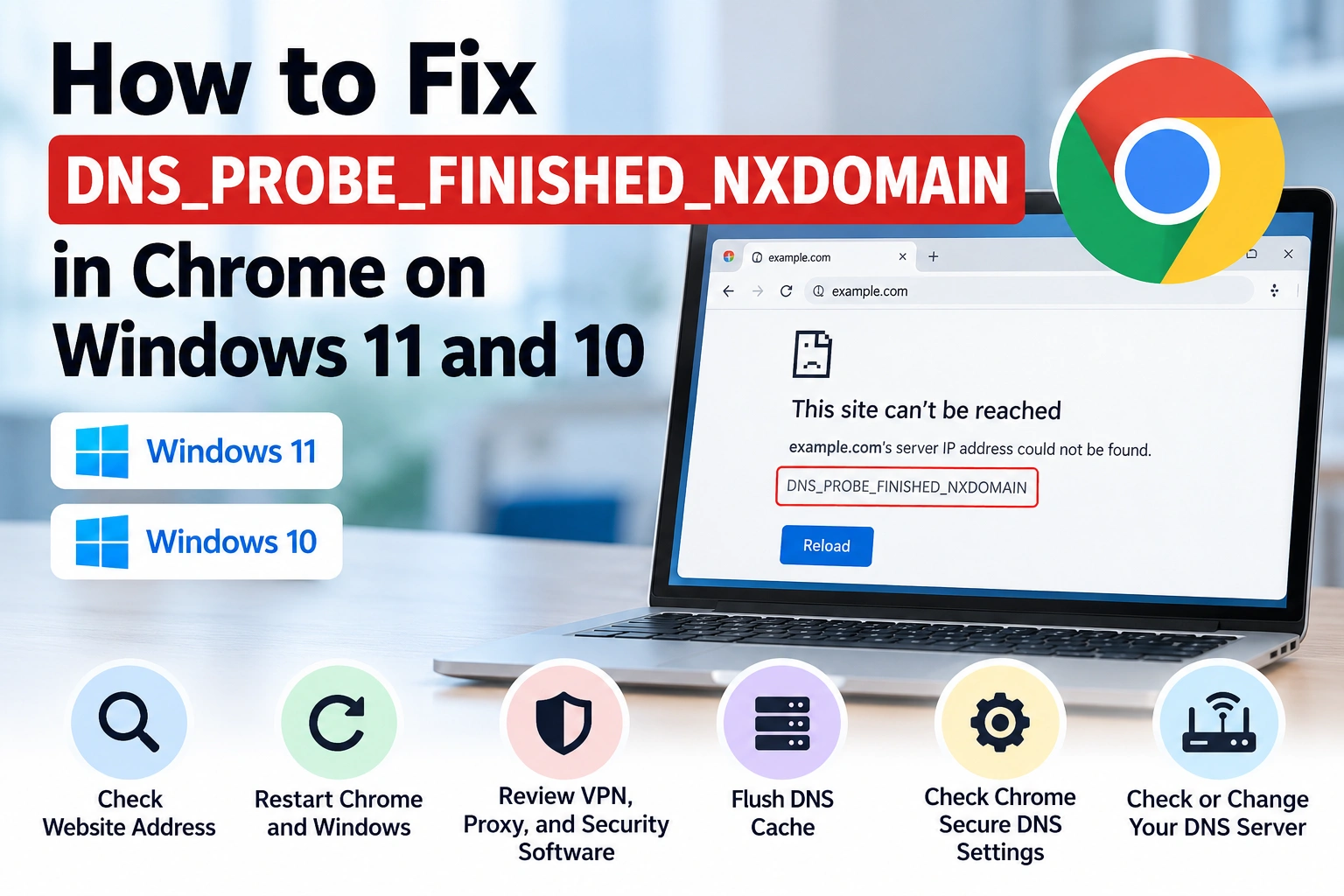
You're trying to open a website in Google Chrome, but instead of loading the page, Chrome displays:
This site can't be reached
DNS_PROBE_FINISHED_NXDOMAIN
This error usually means Chrome couldn't resolve the website's domain name to an IP address.
Sometimes the cause is a simple spelling mistake. Other times, the problem involves your computer's DNS settings, a VPN, your network, or the website's own domain configuration.
You don't need to install troubleshooting software or immediately change your Windows settings.
This guide explains how to fix DNS_PROBE_FINISHED_NXDOMAIN in Chrome on Windows 11 and Windows 10, beginning with simple checks and moving to advanced options only when necessary.
Quick answer: To fix DNS_PROBE_FINISHED_NXDOMAIN in Chrome, first check the website address and test whether other websites load. If several sites are affected, restart Chrome, review your VPN and Secure DNS settings, and clear the Windows DNS cache using ipconfig /flushdns. Only consider changing DNS servers if the earlier checks suggest a DNS resolver problem.
Before you begin: Save unfinished work before restarting applications or your computer. Make one change at a time, record any original settings, and stop troubleshooting as soon as the website works. If a change causes new connection problems, reverse it before trying anything else.

What Does DNS_PROBE_FINISHED_NXDOMAIN Mean?
When you enter a website address such as example.com, your computer normally uses the Domain Name System (DNS) to find the IP address associated with that name.
DNS works somewhat like a directory that helps browsers locate websites.
NXDOMAIN means a DNS resolver returned a response indicating that the requested domain name does not exist.
This may happen because:
The website address is misspelled.
The domain has expired or is no longer registered.
The requested subdomain does not exist.
The website owner has incorrect DNS configuration.
Your DNS resolver has outdated or incorrect information.
A VPN or network filtering service is affecting DNS lookups.
Chrome is using a Secure DNS provider that cannot resolve the requested name.
NXDOMAIN is different from an ordinary website outage. A website's server can be unavailable even when its domain resolves correctly.
Also, a domain can exist without having the particular type of DNS record requested. That situation does not necessarily produce NXDOMAIN.
Important: This error does not automatically mean your internet connection is disconnected or your computer is damaged.
For a technical explanation of NXDOMAIN and how incorrect website DNS records can cause this error, see Cloudflare's DNS_PROBE_FINISHED_NXDOMAIN documentation.
Before You Start: Find Out Where the Problem Is
These checks require no changes to your network settings.
Check whether other websites load
Try opening two or three unrelated websites.
If they load normally, the problem may be limited to the original website.
If several unrelated websites fail with DNS errors, the problem may involve your browser, computer, DNS resolver, or network.
Try the same website in another browser
Open the affected address in Microsoft Edge or another installed browser.
If the website works there but fails in Chrome, Chrome-specific settings deserve attention.
If it fails in multiple browsers, the problem may be outside Chrome.
Try another device or network
Open the same website on your phone.
If possible, compare the result using Wi-Fi and mobile data.
If the website works on mobile data but not your home Wi-Fi, your home network or its DNS resolver may be involved.
Think about recent changes
Did the error start after you:
Connected to a VPN?
Changed DNS settings?
Installed security or parental-control software?
Changed routers or Wi-Fi networks?
If so, investigate that specific change first.
When to stop: If only one website fails across several independent networks while other websites work, skip the system-wide troubleshooting steps. The domain itself may be the problem.
Fix 1: Check the Website Address
Start by checking the address you entered.
Click Chrome's address bar.
Check the spelling of the domain name.
Look for extra characters or an incorrect domain ending.
Correct any mistakes.
Press Enter and try again.
For example, example.com and example.co are different domain names.
If you opened the site through an old bookmark or email, the website may have moved or its domain may have expired.
If possible, verify the organization's current website address through a trusted source.
Best for: An error affecting one specific website.
Fix 2: Restart Chrome and Windows
Temporary browser or networking problems can sometimes resolve after restarting.
Restart Chrome
Save unfinished work.
Close all Chrome windows.
Reopen Chrome.
Try the website again.
Restart Windows
These steps work on Windows 11 and Windows 10.
Open Start.
Select Power.
Choose Restart.
Wait for Windows to start again.
Open Chrome and test the website.
Restart your router only if several devices are affected
If multiple devices on the same home Wi-Fi have DNS problems, restarting the router may help.
Use its normal restart function or follow the manufacturer's instructions.
Do not press the router's factory reset button. Factory resetting can erase network configuration, including Wi-Fi settings.
If the problem affects only one website, restarting your router is unlikely to be the most useful solution.
Fix 3: Check Your VPN, Proxy, and Security Software
VPNs, proxy servers, and security applications can influence DNS resolution.
Check your VPN
If you use a VPN:
Open its application.
Note your current connection and settings.
If the VPN is optional and you are permitted to disconnect it, temporarily disconnect.
Test the website.
Reconnect afterward.
If the website works without the VPN, investigate the VPN provider's DNS settings or contact its support team.
Do not disconnect a VPN required by your workplace or school.
Review Windows proxy settings
Windows 11
Open Settings.
Select Network & internet.
Select Proxy.
Review the configured settings.
Windows 10
Open Settings.
Select Network & Internet.
Select Proxy.
Review the configured settings.
Simply opening this page does not change anything.
If you previously configured a manual proxy yourself, check whether it is still required.
Do not disable a proxy configured by your employer, school, or network administrator.
Check security and filtering applications
If the problem started after installing antivirus, parental-control, or DNS-filtering software, check its alerts and filtering rules.
Look for an indication that the domain has been blocked.
Do not disable your firewall or antivirus protection as a general DNS troubleshooting step.
If a domain has been blocked intentionally, investigate the reason before changing its rules.
Fix 4: Clear the Windows DNS Cache
Windows temporarily stores DNS lookup results so it can reuse them.
Sometimes that cache contains outdated information or a previously failed lookup.
Clearing it can help Windows obtain fresh DNS information.
How to flush DNS on Windows 11 and Windows 10
Open Start.
Type
cmd.Open Command Prompt.
Enter:
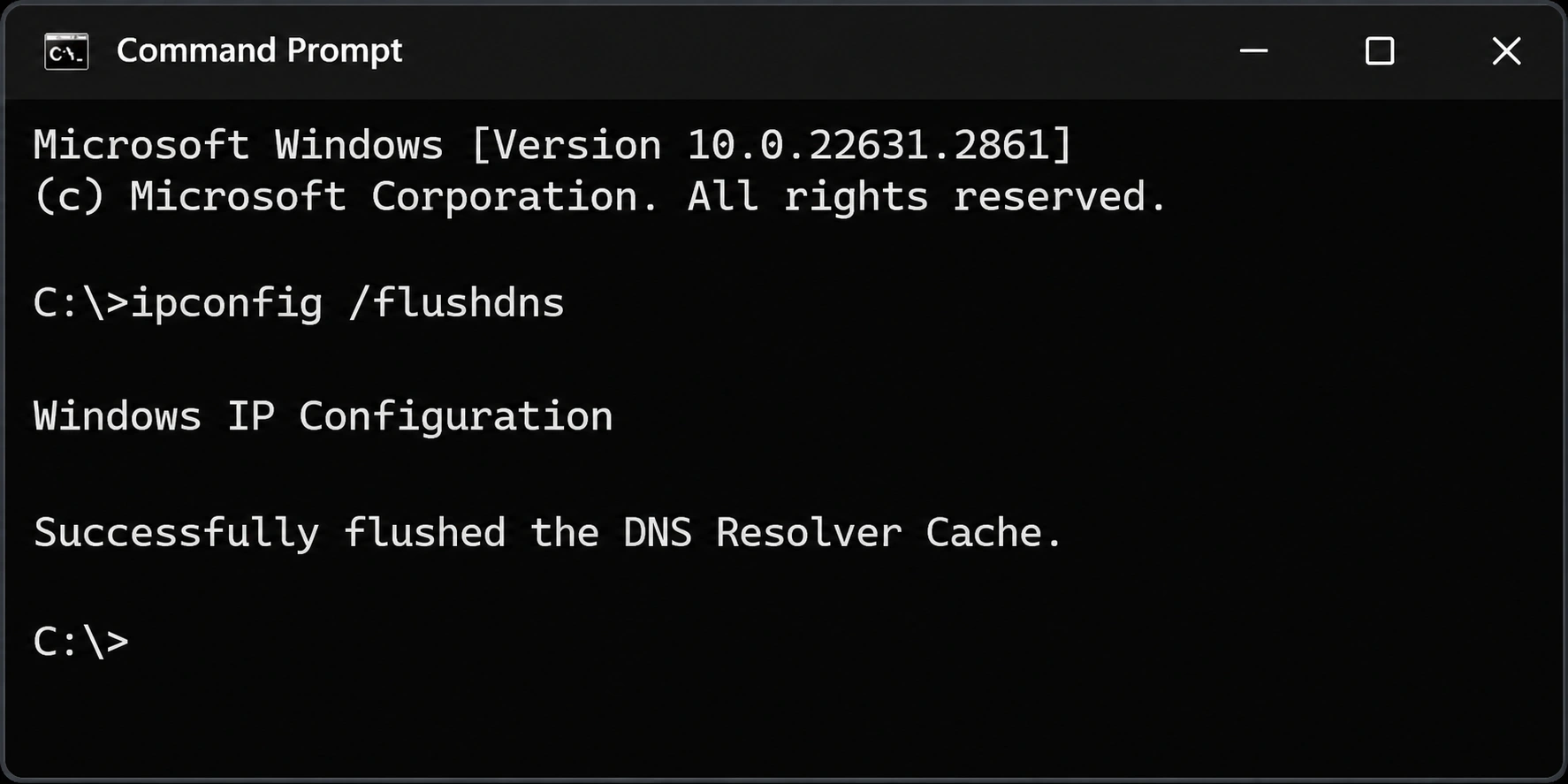
ipconfig /flushdns
Press Enter.
If the command succeeds, Windows normally displays:
Successfully flushed the DNS Resolver Cache.
Close Command Prompt.
Try the website again in Chrome.
Is this safe?
Generally, yes.
The command clears the Windows DNS resolver cache. It does not delete your personal files or change your DNS server addresses.
However, clearing the cache cannot repair a genuinely nonexistent domain or incorrect DNS records maintained by a website owner.
Official reference: Microsoft Learn: ipconfig command and /flushdns option.
Fix 5: Check Chrome Secure DNS Settings
Chrome supports Secure DNS, which can encrypt DNS lookups to improve privacy.
Chrome normally uses Secure DNS in automatic mode. If an encrypted DNS lookup fails in this mode, Chrome may fall back to an unencrypted lookup. When you select a custom Secure DNS provider, Chrome does not use that same fallback behavior, so problems with the provider can prevent websites from loading.
Open Chrome Secure DNS settings
Open Google Chrome.
Click the three-dot menu.
Select Settings.
Select Privacy and security.
Select Security.
Find Use secure DNS under the advanced security settings.

Alternatively, enter this address in Chrome:
chrome://settings/security
What should you do?
First, inspect the current configuration without changing it.
If you manually selected a custom Secure DNS provider, note its name and consider testing Chrome's current service provider option instead.
After changing the provider, test the affected website.
If the problem continues, restore your original provider.
Should you disable Secure DNS?
Keep Secure DNS enabled whenever possible.
If you have evidence that Secure DNS itself is causing the problem, temporarily turning it off can be a diagnostic test.
If the website still fails, immediately turn Secure DNS back on and restore your original provider.
Even if the website works with Secure DNS disabled, investigate the provider or network issue before treating that as a permanent solution.
Disabling Secure DNS can reduce DNS query privacy.
If Chrome reports that the setting is managed by your organization, do not try to override it.
Official reference: Google Chrome Help: Manage Chrome safety and security on a computer.
Optional Diagnostic: Check DNS with nslookup
If the error persists, Windows includes a tool called nslookup that can help investigate DNS resolution.
This is an optional, read-only diagnostic. It does not change your network settings.
How to use nslookup
Open Start.
Type
cmd.Open Command Prompt.
Enter:
nslookup example.com
Replace example.com with the affected domain name.
Do not include https:// or a page address such as /contact.
Press Enter.
What does the result mean?
One or more IP addresses appear
The DNS server returned an address for the requested name. The browser problem may involve another setting or DNS resolution path.
Non-existent domain
The queried resolver reported that the name does not exist.
DNS request timed out
The resolver did not respond within the allowed time.
Server failed or another error
The DNS server encountered a different problem.
These results are clues, not definitive proof of the website's status.
For example, Chrome may use a different DNS provider when Secure DNS is enabled.
A successful lookup also does not guarantee that the website's server is available.
If you are unfamiliar with Command Prompt, you can skip this optional diagnostic.
Official reference: Microsoft Learn: nslookup command.
Advanced Option: Check or Change Your DNS Server
Your computer normally receives DNS server information from your router or network.
If that DNS resolver is malfunctioning, another trusted resolver may help.
However, changing DNS servers is optional and should not be a routine step for a single website showing NXDOMAIN.
Only consider it when several websites are affected, or other checks point toward a DNS resolver problem.
Before changing anything
Use a personal computer and network you are authorized to configure.
Record the current DNS settings.
Record any manually entered IPv4 or IPv6 DNS addresses.
Avoid changing workplace, school, or managed-device settings.
Make sure you know how to restore the original configuration.
Windows 11: Find DNS server assignment
Open Settings → Network & internet.
Select your active Wi-Fi or Ethernet connection.
If using Wi-Fi, open the connected network's properties.
Find DNS server assignment.
Select Edit.

The exact location can vary slightly depending on the Windows version and connection type.
If the connection uses Automatic (DHCP), DNS settings are normally supplied by your network.
If you don't understand the options displayed, cancel without saving and seek assistance.
Windows 10: Find DNS server settings
Open Settings.
Select Network & Internet.
Open Status.
Select Change adapter options.
Right-click your active Wi-Fi or Ethernet adapter.
Select Properties.
Select Internet Protocol Version 4 (TCP/IPv4).
Select Properties.
You should see options to obtain DNS addresses automatically or enter them manually.
Do not change unrelated IP address, subnet mask, or gateway settings.
Trusted public DNS providers
If you have decided that testing another DNS resolver is appropriate, these are two established providers.
Cloudflare DNS
Preferred IPv4 DNS: 1.1.1.1
Alternate IPv4 DNS: 1.0.0.1
Official instructions: Cloudflare: Set up 1.1.1.1 on Windows.
Google Public DNS
Preferred IPv4 DNS: 8.8.8.8
Alternate IPv4 DNS: 8.8.4.4
Official instructions: Google Public DNS: Get started.
Choose one provider for testing. Follow that provider's official Windows instructions rather than guessing which settings to change.
On Windows 11, manual DNS configuration may include separate IPv4, IPv6, and DNS encryption options.
On Windows 10, the IPv4 Properties window provides the preferred and alternate DNS fields.
Change only the settings necessary for your test.
What are the risks?
Changing DNS providers can:
Change which organization handles your DNS requests.
Affect access to private workplace or school domains.
Interfere with parental controls or network filtering.
Produce different DNS results from your original network.
Some networks require their assigned DNS service to function correctly.
How to restore your original DNS configuration
If the test does not help, or if other websites stop working, restore the original settings.
Windows 11
Return to your active connection's DNS server assignment.
Select Edit.
If it previously used Automatic (DHCP), select Automatic (DHCP).
Save.

If the connection originally used manually configured DNS addresses, restore those exact addresses and related settings instead.
Windows 10
Return to your active adapter's Properties.
Open Internet Protocol Version 4 (TCP/IPv4).
Select Properties.
If the original setting was automatic, select Obtain DNS server address automatically.
Otherwise, restore the original manually configured DNS addresses.
Select OK.
If you changed any IPv6 DNS settings, restore those too.
Important: Do not switch a previously manual configuration to Automatic simply because a guide recommends it. Restore what was there before.
If you cannot reconnect after restoring the settings, contact your network provider or administrator instead of experimenting with additional changes.
Advanced Note: Windows Hosts File
Windows has a local hosts file that can associate domain names with IP addresses.
Incorrect entries can affect access to particular websites.
However, hosts-file problems are not a routine explanation for NXDOMAIN errors.
If the problem began after you or an application modified the hosts file, that change may deserve investigation.
For beginners, we do not recommend editing, deleting, or replacing the hosts file as part of this guide.
Some entries may be intentional or required by software.
If you suspect a hosts-file problem, seek assistance from a qualified technician or network administrator.
Last Resort: Windows Network Reset
A network reset is a broad troubleshooting action, not a normal fix for DNS_PROBE_FINISHED_NXDOMAIN.
Skip this section if only one website is affected or other websites and applications work normally.
Consider a network reset only when you have persistent, widespread network problems and simpler troubleshooting has failed.
Windows 11
Open Settings.
Select Network & internet.
Select Advanced network settings.
Select Network reset.
Read the information displayed.

Windows 10
Open Settings.
Select Network & Internet.
Select Status.
Select Network reset.
Read the information displayed.
Do not click Reset now simply because you reached this section.
What can a network reset change?
Windows can remove and reinstall network adapters and restore networking components to their default settings.
Afterward, you may need to:
Reconnect to Wi-Fi.
Reconfigure VPN software.
Restore custom DNS or network settings.
Reconfigure virtual network adapters.
Reinstall or reconfigure some networking software.
A reset may also change network profile settings.
If you depend on specialized networking software, or use a work or school computer, contact your administrator before proceeding.
Official reference: Microsoft Support: Fix Wi-Fi connection issues in Windows.
What If Only One Website Shows DNS_PROBE_FINISHED_NXDOMAIN?
If other websites work normally, the affected domain may be the cause.
Possible explanations include:
A misspelt domain name.
An expired or unregistered domain.
Incorrect DNS records.
A missing or incorrectly configured subdomain.
Recent DNS changes that have not reached every resolver.
DNS filtering or an incorrect response from your network's resolver.
What should you do?
Check the exact website address.
Test another browser.
Try another device or independent network.
Check whether the website owner has announced a domain change.
Contact the website owner if the problem persists.
If the website fails across multiple independent networks, avoid repeatedly changing Windows settings.
If you own the domain, check its registration, nameservers, and DNS records through your registrar or DNS hosting provider.
If you are only visiting the website, you may need to wait for the owner to correct the problem.
For additional information, see Cloudflare's NXDOMAIN troubleshooting guide.
Troubleshooting Recap: What Should You Try First?
Not sure which troubleshooting step applies to your situation? Use this quick guide to identify what to check first.
1. Only one website fails to load
Check the website address for spelling mistakes and try opening it using another network.
2. Several websites fail to load in Chrome
Restart Chrome and review its Secure DNS settings.
3. Websites fail in multiple browsers on the same computer
Clear the Windows DNS cache and investigate your network settings.
4. Multiple devices on your home Wi-Fi have the same problem
Check your router and your network's DNS service.
5. The error started after connecting to a VPN
Review your VPN's DNS settings and test the connection without the VPN, if permitted.
6. The error started after changing DNS settings
Restore your previous DNS configuration and test the affected websites again.
7. You want to investigate DNS lookup results
Use the optional nslookup diagnostic tool to examine DNS responses.
8. Multiple websites fail, and you suspect a DNS resolver problem
Consider temporarily testing a trusted alternative DNS provider after recording your original settings.
9. Widespread network problems persist after basic troubleshooting
Seek technical assistance before considering a Windows network reset.
Frequently Asked Questions
Is DNS_PROBE_FINISHED_NXDOMAIN a Chrome problem?
Not necessarily.
Chrome displays the error, but the underlying cause may involve the website's domain, DNS resolver, Windows networking, VPN, or filtering service.
Does this error mean my internet is disconnected?
No.
Your internet connection may still work normally even when a particular domain cannot be resolved.
Is flushing the DNS cache safe?
Generally, yes.
The ipconfig /flushdns command clears cached DNS information. It does not delete personal files or change DNS server addresses.
Will changing DNS servers always fix NXDOMAIN?
No.
A different DNS resolver may help when the original resolver is malfunctioning. It cannot make a genuinely nonexistent domain available.
Can the error resolve itself?
Sometimes.
Temporary DNS resolver problems or recent DNS changes may resolve without changes to your computer.
However, an incorrectly typed or permanently removed domain will not become valid simply by waiting.
Should I disable antivirus or firewall protection?
No.
Disabling security protection is not a recommended general solution.
If security software is blocking a website, investigate the reason before changing its rules.
How do I fix DNS_PROBE_FINISHED_NXDOMAIN on Windows 11 or Windows 10?
Start by checking the website address, testing another browser, and clearing the DNS cache with ipconfig /flushdns. These steps work on both Windows 11 and Windows 10.
The main differences involve where Windows displays DNS and network settings. Follow the instructions for your version before changing anything.
Is DNS_PROBE_FINISHED_NXDOMAIN the same as ERR_CONNECTION_RESET?
No.
DNS_PROBE_FINISHED_NXDOMAIN concerns domain name resolution.
ERR_CONNECTION_RESET generally means an attempted network connection was unexpectedly reset.
Both can stop a website from loading, but their causes and solutions are different.
For connection reset problems, read our related guide:
How to Fix ERR_CONNECTION_RESET in Chrome on Windows 11 and 10.
Final Thoughts
If Chrome displays DNS_PROBE_FINISHED_NXDOMAIN, start by checking the website address and determining whether the problem affects one website or several.
Test another browser or device before changing network settings.
If the problem appears to be on your computer, begin with low-risk actions such as restarting Chrome and clearing the Windows DNS cache.
Review VPN and Secure DNS settings when the evidence points toward them.
Manual DNS changes should be optional, reversible, and limited to situations where a DNS resolver problem is reasonably suspected.
Windows Network Reset should remain a last resort for broader networking problems, not a routine response to one browser error.
The safest approach is simple: identify the cause, make one change at a time, preserve the original settings, and stop when the problem is resolved.