How to Fix ERR_CONNECTION_TIMED_OUT in Chrome on Windows 11
Seeing ERR_CONNECTION_TIMED_OUT in Google Chrome? Learn how to troubleshoot this error on Windows 11 with step-by-step fixes for Chrome, Wi-Fi, DNS, and network settings.
Software · By Eshant Verma · Published
You open a website in Google Chrome, wait for it to load, and eventually see “This site can’t be reached” with the error code ERR_CONNECTION_TIMED_OUT.
This can be frustrating, especially when your Wi-Fi appears to be connected and other apps seem to work normally.
The good news is that this error doesn't automatically mean your computer is damaged or that you need to reinstall Chrome.
It means Chrome couldn't complete its connection to the website within the expected time.
The problem could involve Chrome, your internet connection, your home router, your Windows 11 network settings, or the website itself.
In this guide, you'll learn how to fix ERR_CONNECTION_TIMED_OUT in Chrome on Windows 11, starting with simple checks before moving to more advanced troubleshooting.
The Chrome and Windows 11 interface instructions were checked on a Windows 11 computer. We also reproduced the ERR_CONNECTION_TIMED_OUT error using a reserved documentation IP address. Individual troubleshooting fixes were not tested against every possible cause of the error.
In This Guide
Here's what we'll cover to help you troubleshoot the connection timeout error:
What ERR_CONNECTION_TIMED_OUT means.
How to identify where the problem is happening.
Fixes 1–5: Basic internet and Chrome troubleshooting.
Fixes 6–10: VPN, proxy, Windows network, DNS, and security checks.
Advanced troubleshooting and network reset precautions.
Related Chrome errors and frequently asked questions.
Before You Begin
You don't need advanced computer knowledge to follow this guide, but it's important to avoid unnecessary changes.
Keep these precautions in mind:
Save unfinished work before restarting Chrome or your router.
Follow only the steps relevant to your problem.
Stop as soon as the affected website starts working again.
Don't turn off your firewall or antivirus protection.
Don't change network settings unless you understand what they do.
Record your original settings before making changes.
If you're using a work or school computer, contact your IT administrator before changing network or security configurations.
Important: Most readers should start with the first few fixes. Advanced network changes are rarely the right place to begin.
What Does ERR_CONNECTION_TIMED_OUT Mean?
ERR_CONNECTION_TIMED_OUT is a Chrome error that appears when the browser cannot complete a connection to a website before the connection attempt times out.
Think of it like calling a phone number and waiting for someone to answer. If the connection never completes, you eventually stop waiting.
Something similar can happen when Chrome tries to connect to a website.
The error doesn't tell you exactly where the problem occurred.
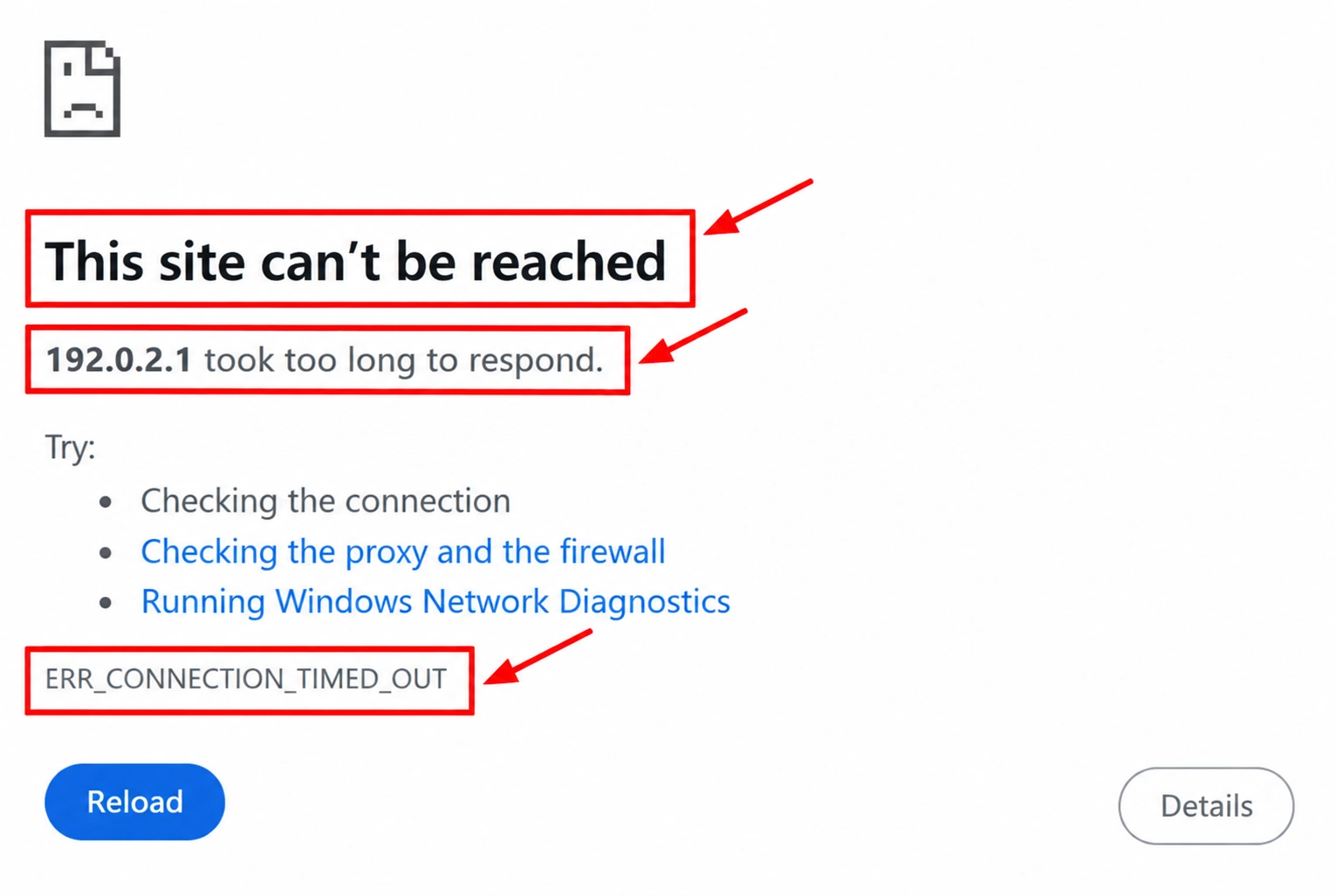
Possible causes include:
An unstable Wi-Fi or Ethernet connection.
A temporary router or modem problem.
A website that is down or responding slowly.
A problem with your internet service provider.
A VPN or proxy connection that isn't working correctly.
A Chrome extension interfering with browsing.
Firewall or security software restrictions.
DNS or other network configuration problems.
DNS, short for Domain Name System, helps your computer find the network address associated with a website name.
Not every timeout is caused by DNS, so there's no reason to change DNS settings immediately.
Google's official Chrome connection troubleshooting guide also recommends checking the browser and internet connection when websites fail to load.
First, Find Out Where the Problem Is Happening
Before changing any settings, take a minute to identify whether the problem affects one website, Chrome, your computer, or your entire internet connection.
These three checks can save you from unnecessary troubleshooting.
Check 1: Open another website
Open a new Chrome tab and try visiting a familiar website, such as Google or Microsoft.
If those websites load normally, your internet connection is probably working at least partially.
The problem may involve the original website or the connection route used to reach it.
If several unrelated websites fail, the issue may be broader.
Check 2: Try the same website in Microsoft Edge
Microsoft Edge is included with Windows 11.
Open Microsoft Edge.
Type the exact website address that failed in Chrome.
Press Enter.
Check whether the page loads.
If it works in Edge but not Chrome: Start with the Chrome-specific fixes below.
If it fails in both browsers: Check your internet connection, the website itself, or Windows networking.
This comparison helps narrow down the problem, but it doesn't prove the exact cause.
Check 3: Try another device or network
If you have a smartphone:
Connect your phone to the same Wi-Fi network as your computer.
Try opening the affected website.
If it fails, turn off Wi-Fi on your phone.
Try the website again using mobile data, if available.
If the website works on mobile data but not your home Wi-Fi, your home network or internet provider may be involved.
If the website fails on independent connections, the website itself may be having problems.
Which fixes should you try?
Only Chrome is affected: Start with Fixes 1, 3, 4, and 5.
Several browsers are affected on one computer: Start with Fixes 1, 2, and 8.
Several devices on the same Wi-Fi are affected: Focus on Fix 2.
Only one website is affected: Read the section about a single website timing out before attempting advanced fixes.
You do not need to follow every fix in order.
Fix 1: Reload the Website and Restart Chrome
Sometimes a connection timeout is temporary.
Before changing anything, try reloading the page.
Open the affected website in Chrome.
Press Ctrl + R to reload it.
Wait to see whether it opens.
If the error continues, save any unfinished work.
Close Chrome completely.
Reopen Chrome and visit the website again.
Restarting Chrome may resolve a temporary browser problem.
Before closing Chrome: Save unfinished forms and other browser-based work. Restarting may interrupt downloads or active sessions.
If the website works again, you can stop troubleshooting.
Fix 2: Check Your Internet Connection
If multiple websites aren't loading, check whether Windows 11 has a working internet connection.
Check your connection in Windows 11
Press Windows + I to open Settings.
Select Network & internet.
Check whether your Wi-Fi or Ethernet connection appears connected.
Open Chrome and try another website.

Remember that a computer can be connected to Wi-Fi even when the internet service isn't working.
If other devices on the same network also have problems, the issue may involve your router or internet provider.
Restart your home router if necessary
If you own or control your home router and several devices are affected:
Save any work that requires an internet connection.
Let other people using the network know that the connection will briefly stop.
Turn off or unplug the router.
Wait about 30 seconds.
Restore power.
Wait for the router to reconnect.
Test the affected website again.
If you have separate modem and router devices, follow your internet provider's instructions for restarting them.
Important: Restarting a router temporarily disconnects devices such as computers, phones, video calls, smart-home equipment, and security cameras.
Do not press the router's factory reset button. A factory reset can erase important configuration settings.
If you're on a shared or managed network, contact the network administrator instead.
Using hotel, airport, or coffee shop Wi-Fi?
Some public Wi-Fi networks require you to sign in or accept their terms before internet access becomes available.
If you're connected to public Wi-Fi but websites won't load, check whether the network has an official sign-in page.
If you're not sure how to access it, ask the hotel, airport, or business for its Wi-Fi instructions.
Avoid entering passwords or personal information into unfamiliar sign-in pages.
Fix 3: Update Google Chrome
Chrome updates include security improvements, bug fixes, and compatibility changes.
An outdated browser isn't always responsible for ERR_CONNECTION_TIMED_OUT, but checking for updates is a reasonable step when the issue seems limited to Chrome.
How to check for Chrome updates
Open Google Chrome.
Click the three-dot menu in the upper-right corner.
Select Help.
Select About Google Chrome.
Wait while Chrome checks for updates.
If Chrome installs an update, save your work and select Relaunch when prompted.
You can also type the following into Chrome's address bar:
chrome://settings/help

Chrome may begin downloading or installing an available update automatically when you open this page.
You generally don't need to search for a separate update button.
Before selecting Relaunch: Save unfinished forms, downloads, and other browser-based work.
After Chrome restarts, try the website again.
For additional details, see Google's official guide to updating Google Chrome.
Fix 4: Test the Website in Incognito Mode
Chrome's Incognito mode opens a separate browsing session.
It doesn't use the same existing browsing session data, and most extensions are disabled by default unless you've allowed them in Incognito mode.
This makes it useful for checking whether an extension or stored browser information might be affecting the website.
Open the website in Incognito mode
Open Google Chrome.
Press Ctrl + Shift + N.
A new Incognito window should open.
Enter the affected website address.
Check whether the website loads.
If the website works in Incognito mode: An extension or stored browser data may be involved.
If the website still fails: The problem may be elsewhere.
Incognito mode isn't a guaranteed way to identify the cause. It is simply a useful comparison.
Privacy note: Incognito mode doesn't hide your browsing from websites, internet providers, employers, or network administrators.
Check optional Chrome extensions
If the website works in Incognito mode but fails in a normal Chrome window, you can review your extensions.
Extensions are small tools that add features to Chrome.
Some extensions can change how websites load or how network requests are handled.
To inspect them:
Open Chrome.
Enter
chrome://extensionsin the address bar.Review your installed extensions.
Identify optional extensions you personally installed.
Record which extensions are enabled.
If appropriate, temporarily turn off one optional extension.
Test the affected website again.
Restore the extension's original setting if it wasn't responsible.
Repeat only when necessary.
Important: Do not disable organization-managed extensions, security extensions, or protective tools without understanding their purpose and obtaining permission where required.
If an extension appears responsible, check for updates or contact its developer.
Fix 5: Clear Chrome's Cached Files
Chrome stores copies of certain website resources, such as images and other files, to help pages load more quickly.
These saved resources are called the cache.
Sometimes outdated cached files can contribute to website loading problems.
Clearing them may help if the problem appears limited to Chrome.
How to clear cached files safely
Open Chrome.
Press Ctrl + Shift + Delete.
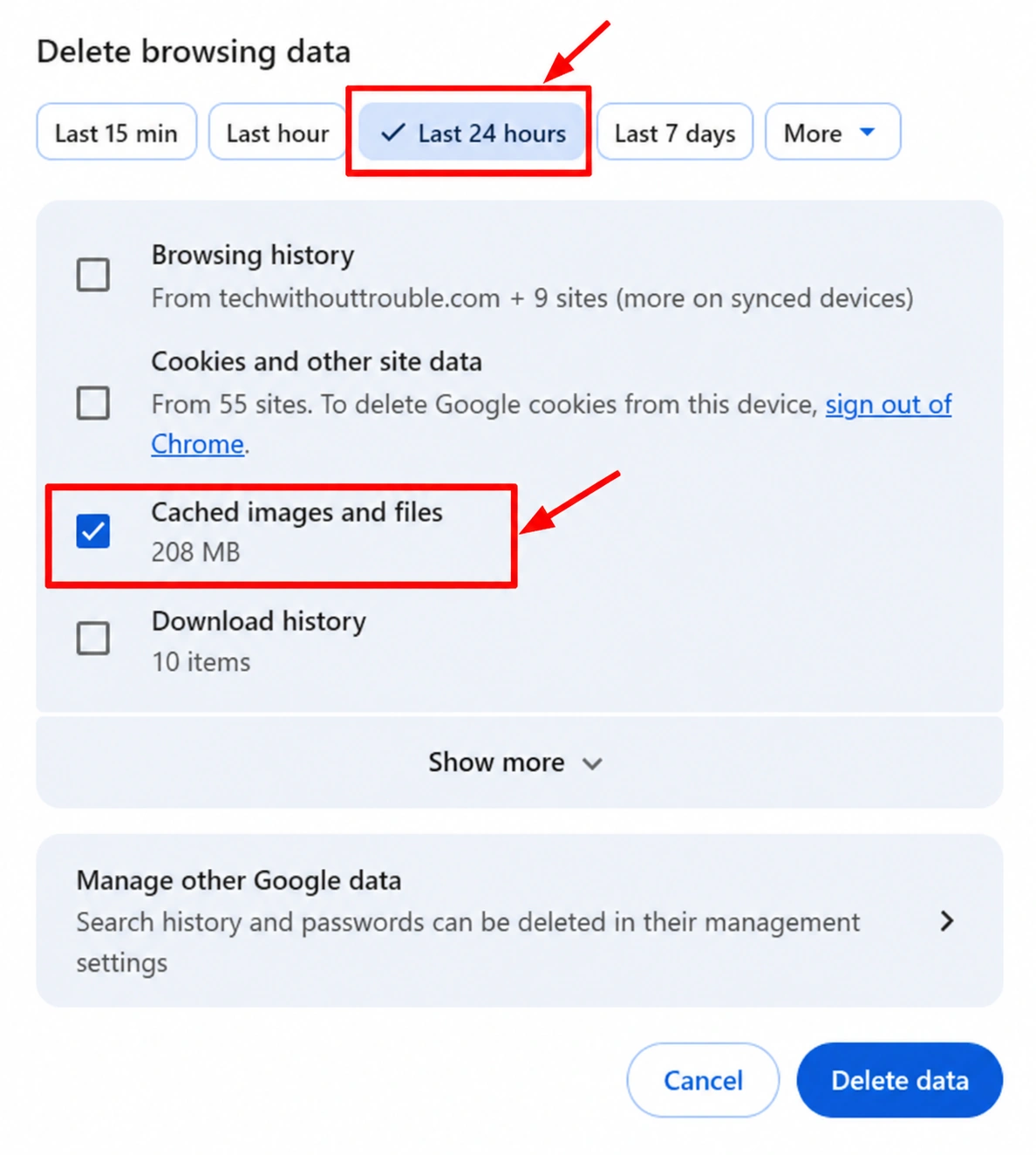
The Delete browsing data screen should appear.
Choose a time range. You can start with Last 24 hours, if available.
Uncheck every category except Cached images and files.
Carefully review the selected categories.
Confirm that browsing history, cookies, passwords, and other categories are not selected.
Select Delete data.
Try opening the affected website again.
If the problem continues and you have reason to suspect older cached files, you can consider repeating the process with a longer time range.
What happens when you clear the cache?
Chrome removes the selected locally stored website resources.
The next time you visit certain websites, Chrome may need to download those resources again.
This can make the first visit slightly slower.
Before you continue: Do not select cookies, browsing history, saved passwords, or other data unless you specifically want to remove them.
Clearing cached files won't fix a router outage, an unavailable website, or a broken internet connection.
Fix 6: Review Your VPN Connection
A VPN, or virtual private network, routes your internet traffic through another server.
People use VPNs for privacy, security, remote work, or accessing private networks.
If a VPN connection isn't working properly, some websites may fail to load.
What should you check?
If you personally installed a VPN, open its application and check whether it reports a connection problem.
You can also review the VPN provider's official troubleshooting instructions.
If the provider recommends testing without the VPN, do so only if it's appropriate for your situation and you understand the privacy implications.
Before changing anything, record the original VPN connection status, selected server, and any custom settings you configured.
Important: Disconnecting a VPN may change your privacy protections or interrupt access to work resources.
Do not disconnect a work, school, or organization-required VPN without authorization.
If you perform a temporary test, restore the original VPN connection afterward if you still need it.
Fix 7: Review Windows 11 Proxy Settings
A proxy server is a server that sends website requests on behalf of your computer.
Some organizations use proxy servers to manage or protect internet access.
A proxy that is incorrectly configured or unavailable may prevent websites from loading.
However, a proxy setting isn't automatically suspicious. It may be required for your network.
How to inspect proxy settings
Press Windows + I.
Select Network & internet.
Select Proxy.
Find Automatic proxy setup and Manual proxy setup.
Review the settings without changing them.
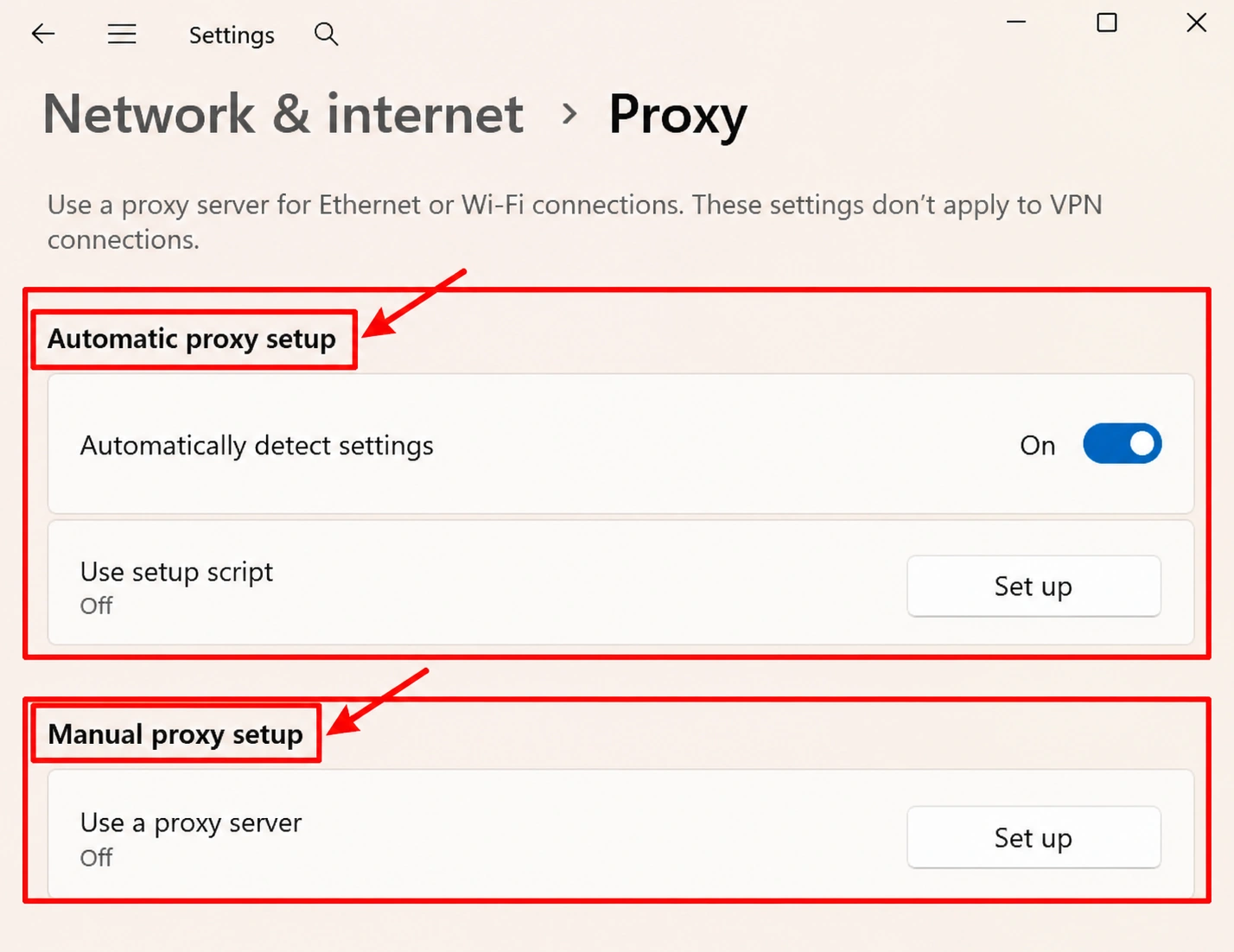
If you're unfamiliar with these options, it's usually better to leave them alone.
Before changing a proxy setting
Record the original configuration, including any relevant:
Automatic detection setting.
Setup-script address.
Manual proxy on/off setting.
Proxy server address and port.
Proxy exceptions or other custom settings.
Keep these details somewhere you can access even if your internet connection stops working.
Important: Changing a required proxy can interrupt internet access or prevent access to work and school systems.
If the proxy is managed by an organization, contact its IT administrator.
For more information, see Microsoft's documentation on using a proxy server in Windows.
Fix 8: Use Windows 11 Network Troubleshooting
If several websites fail in both Chrome and Microsoft Edge, Windows network troubleshooting may help identify a computer-level connection problem.
Windows 11 provides network troubleshooting through Microsoft's Get Help application.
How to open network troubleshooting
Open the Start menu.
Type Get Help.
Open the Get Help application.
Search for network troubleshooting.
Select the relevant network or internet troubleshooting option.
Follow the instructions, reviewing any proposed changes before approving them.
The exact options may vary depending on your Windows 11 version and updates.
What if Windows recommends changing settings?
Read the explanation carefully.
Some troubleshooting tools may recommend restarting a network adapter or changing networking settings.
A network adapter is the component that lets your computer connect through Wi-Fi, Ethernet, or another network connection.
If you don't understand a proposed change, don't approve it automatically.
Microsoft provides more information in its official Windows Wi-Fi troubleshooting guide.
Before Trying More Advanced Fixes
If the website now loads, stop here.
If only one website still fails while other websites work normally, skip to What If ERR_CONNECTION_TIMED_OUT Happens on Only One Website?
The next steps are more relevant when you have evidence of a DNS, security software, or wider Windows networking problem.
Don't change advanced settings simply because earlier fixes didn't help.
Fix 9: Flush the DNS Cache if a DNS Problem Is Suspected
DNS stands for Domain Name System.
It helps your computer find the network address associated with a website name.
Windows keeps a temporary record of some DNS information so it doesn't need to look up the same addresses repeatedly.
This temporary record is called the DNS cache.
Occasionally, cached DNS information can become outdated.
Clearing it may help with certain website connection problems, but it isn't a universal solution for ERR_CONNECTION_TIMED_OUT.
How to flush the DNS cache on Windows 11
Follow these steps:
Save any important work.
Open the Start menu.
Type
cmd.Open Command Prompt.
Enter the command shown below and press Enter.
Wait for Windows to display the result.
If the command succeeds, close Command Prompt.
Try opening the affected website again.
Command to enter:
ipconfig /flushdns
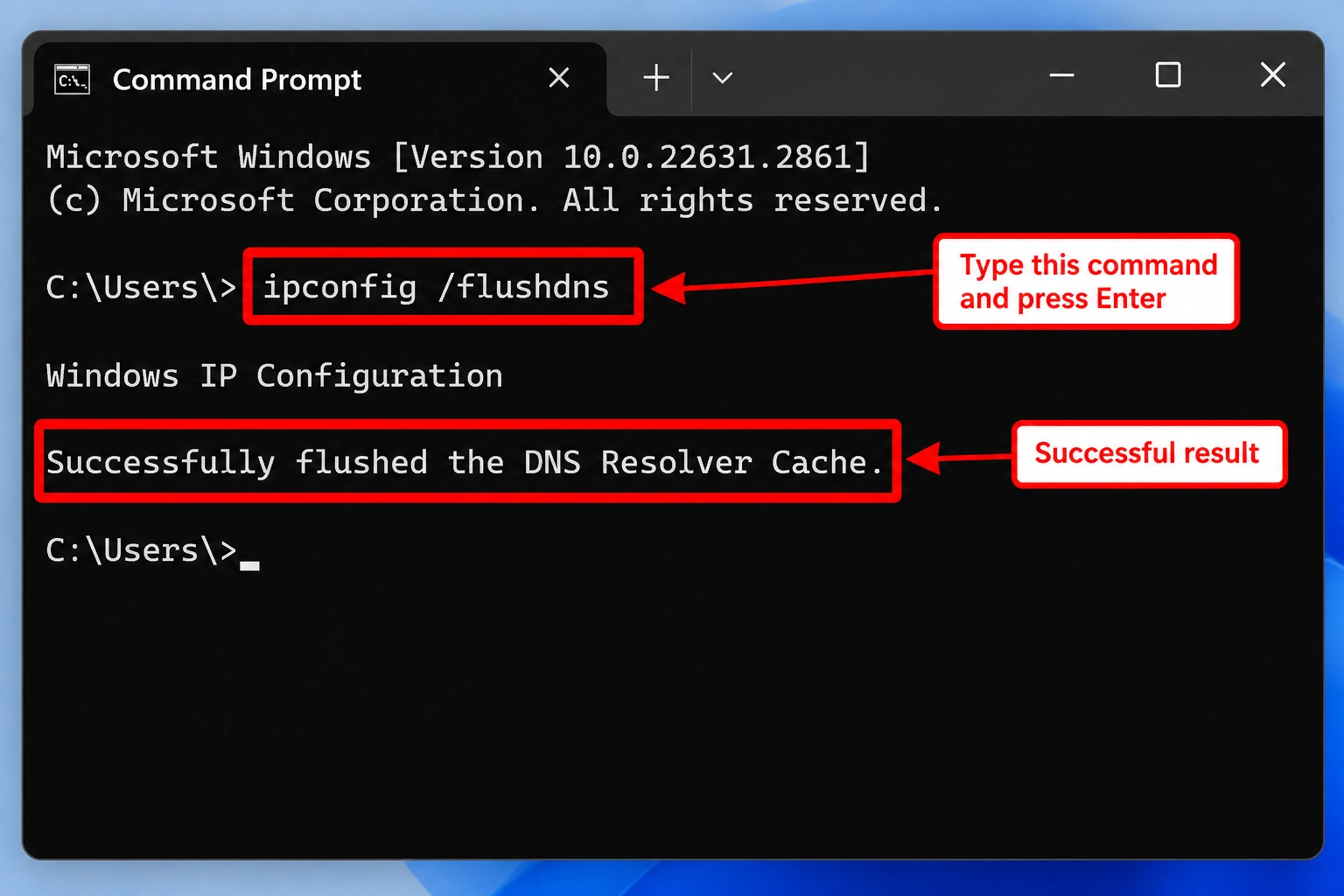
A successful result normally includes a message indicating that the DNS resolver cache was flushed.
We executed this command successfully during our Windows 11 procedure verification.
What if the command doesn't work?
If Command Prompt displays an error, read the message rather than trying unrelated commands.
Some systems may require different permissions or may restrict command-line operations.
If you see a permissions-related error, stop and seek appropriate assistance rather than experimenting with administrator commands.
Is flushing DNS safe?
The standard ipconfig /flushdns command clears locally cached DNS resolver information.
It doesn't delete personal documents, saved passwords, or installed applications.
Windows may need to look up website addresses again afterward.
Important: Enter only the command shown above. Don't run additional network reset commands or scripts unless you understand their purpose.
Fix 10: Check Firewall and Security Software Without Turning Them Off
Windows includes built-in security features that help protect your computer from unwanted network connections.
These include Microsoft Defender Firewall and other Windows Security protections.
Some third-party security applications also inspect network traffic.
If the timeout started immediately after a security software installation or configuration change, reviewing the relevant settings may be useful.
How to view Windows Firewall status
Open the Start menu.
Type Windows Security.
Open the application.
Select Firewall & network protection.
Review the displayed network profiles and protection status.
This lets you inspect the firewall without disabling it.
Do not turn off Microsoft Defender Firewall or antivirus protection as a routine troubleshooting step.
If you believe security software is blocking Chrome, consult the software provider's official support instructions.
On a work or school computer, contact your IT administrator.
Disabling security protections can expose your computer to unnecessary risks and isn't required for the checks in this guide.
Advanced Option: Consider Windows Network Reset Only as a Last Resort
Windows 11 includes a feature called Network reset.
This feature removes and reinstalls network adapters and resets networking components to their default settings.
It is much more disruptive than restarting Chrome or clearing cached files.
A network reset may affect:
VPN applications and configurations.
Virtual network adapters.
Custom IP address settings.
Custom DNS server settings.
Network profiles and connectivity preferences.
Specialized software that depends on network configuration.
You may need to reconnect to networks or reconfigure certain applications afterward.
Before considering a network reset
Make sure you have recorded or backed up the information needed to restore your network connection.
This may include:
Wi-Fi network names and passwords.
Manually configured IP addresses.
Custom DNS server addresses.
Proxy server and setup-script settings.
VPN connection details.
Virtual networking or specialized software configurations.
Store the information somewhere you can access without an internet connection.
If you don't know how your network is configured, don't proceed.
Where to find Network reset in Windows 11
You can inspect the feature without performing a reset:
Press Windows + I.
Select Network & internet.
Open Advanced network settings.
Find Network reset.
Read its description and warnings.

Do not select Reset now just to see what happens.
We verified the location of this feature on Windows 11 without executing a reset.
A network reset should only be considered when simpler troubleshooting has failed and there is a reasonable indication of a computer-level networking problem.
Microsoft also describes network reset as a last-resort troubleshooting option in its Windows connection troubleshooting documentation.
If you're using a managed computer or have a complex network setup, seek help from an IT administrator or qualified technician.
What If ERR_CONNECTION_TIMED_OUT Happens on Only One Website?
Sometimes Chrome loads most websites normally, but one particular website keeps showing ERR_CONNECTION_TIMED_OUT.
In that situation, changing your computer's network settings may not help.
The website could be experiencing:
A temporary server outage.
High traffic or slow responses.
A problem with its hosting provider.
A network routing issue.
Restrictions affecting certain connections.
Start with these checks:
Confirm that you've entered the correct website address.
Try opening the website in Microsoft Edge.
If possible, test it on another device.
Try an independent internet connection, such as mobile data.
Wait a little while and try again.
If the website doesn't load on multiple independent connections, it may be experiencing a problem outside your computer.
You can contact the website's support team if it provides a way to report accessibility problems.
If the website works through another connection but not your own, your internet provider or network administrator may be able to investigate.
Don't perform a Windows network reset simply because one website is unavailable.
ERR_CONNECTION_TIMED_OUT vs. Other Chrome Errors
Chrome displays different error codes depending on the type of connection failure.
Although these errors may look similar, they don't necessarily have the same cause.
ERR_CONNECTION_TIMED_OUT
Chrome couldn't complete the connection before the connection attempt timed out.
The problem may involve the website, network connection, or connection configuration.
ERR_CONNECTION_RESET
This means a connection was unexpectedly reset.
If you're seeing this error instead, read our guide:
How to Fix ERR_CONNECTION_RESET in Chrome
DNS_PROBE_FINISHED_NXDOMAIN
This indicates that DNS couldn't resolve the requested website name.
If Chrome shows this error, follow our separate guide:
How to Fix DNS_PROBE_FINISHED_NXDOMAIN in Chrome
Using the guide that matches your actual error code will help you avoid unnecessary troubleshooting.
Frequently Asked Questions
Why does Chrome show ERR_CONNECTION_TIMED_OUT when my internet works?
Your internet connection may be working while a particular website is unavailable or unreachable.
A timeout can also result from network routing problems, browser configuration issues, or restrictions affecting a specific connection.
Try another website and browser before changing settings.
How do I fix ERR_CONNECTION_TIMED_OUT in Chrome on Windows 11?
Start by reloading the page, restarting Chrome, and checking whether other websites work.
If the problem appears limited to Chrome, check for updates, try Incognito mode, review optional extensions, and consider clearing cached files.
If multiple browsers are affected, investigate your internet connection and Windows network diagnostics.
Can a website cause ERR_CONNECTION_TIMED_OUT?
Yes.
A website may be temporarily unavailable, overloaded, or unreachable through a particular network route.
If other websites load normally, investigate the affected website before making advanced Windows changes.
Can clearing Chrome's cache fix a connection timeout?
Sometimes.
Clearing cached files may help when stored browser information contributes to the problem.
However, it won't fix an unavailable website server, a router outage, or a wider internet connection failure.
Does ERR_CONNECTION_TIMED_OUT mean my computer has a virus?
Not necessarily.
This error is not, by itself, evidence of a virus or malware infection.
It can occur for several ordinary networking reasons.
If you have independent signs of a security problem, use your existing trusted security software or seek qualified assistance.
Is flushing DNS safe on Windows 11?
The standard ipconfig /flushdns command clears temporary DNS resolver information.
It doesn't remove personal documents or installed programs.
However, it is only useful for certain DNS-related situations and isn't guaranteed to resolve a timeout.
Should I disable my firewall to fix ERR_CONNECTION_TIMED_OUT?
No.
Disabling your firewall or antivirus protection isn't recommended as a routine troubleshooting step.
Review the settings without changing them, or consult the security software provider's official support documentation.
Will a Windows network reset delete my personal files?
Windows network reset is intended to reset networking components rather than delete personal documents.
However, it can remove or alter networking configurations, and some VPNs, virtual adapters, or specialized connections may need to be set up again.
Use it only as a last resort.
Why does a website work in Edge but not Chrome?
Chrome and Edge can have different extensions, browser settings, and stored website information.
If the website works in Edge, investigate Chrome's updates, Incognito mode, extensions, and cached files before changing Windows networking settings.
Should I reinstall Chrome to fix ERR_CONNECTION_TIMED_OUT?
Reinstalling Chrome is usually unnecessary as an initial troubleshooting step.
It won't repair an internet provider outage, a router problem, or an unavailable website server.
Start with simpler checks that help identify the actual cause.
Final Thoughts
The best way to fix ERR_CONNECTION_TIMED_OUT in Chrome is to identify where the connection is failing before changing settings.
Start with the basics: reload the website, check your internet connection, and compare Chrome with another browser.
If the issue is limited to Chrome, investigate updates, Incognito mode, extensions, and cached files.
If several browsers or devices are affected, focus on the network connection and relevant Windows troubleshooting tools.
Avoid changing advanced DNS, VPN, proxy, firewall, or network settings unless the symptoms point to those areas and you know how to restore the original configuration.
Most importantly, stop troubleshooting as soon as the website works again.
You don't need to complete every fix to solve the problem.
Disclaimer
This article provides general educational troubleshooting information for Google Chrome on Windows 11. The instructions may not apply to every computer, Windows version, network, or organization-managed device.
The relevant Chrome and Windows 11 interface paths were checked on a Windows 11 computer, and the DNS cache command was executed successfully. These checks confirmed interface availability and command behavior, not the effectiveness of each fix against an active connection timeout.
Troubleshooting can interrupt internet connectivity, affect active sessions, or require settings to be restored. No procedure is guaranteed to resolve every instance of ERR_CONNECTION_TIMED_OUT.
Before changing network configurations, record your original settings and make sure you understand how to restore them. Do not modify organization-managed systems without authorization.
Tech Without Trouble is an independent technology information website and is not affiliated with Google or Microsoft. References to their products and documentation are provided for informational purposes.
If you're uncertain about a setting or your computer uses specialized networking software, seek assistance from your IT administrator, internet service provider, or a qualified technician.