How to Fix ERR_CONNECTION_REFUSED in Chrome on Windows 11
Chrome showing ERR_CONNECTION_REFUSED? Find the cause and follow safe, step-by-step fixes for Windows 11 without unnecessary network resets.
Software · By Eshant Verma · Published
You're trying to open a website in Google Chrome, but instead of the page, you see "This site can't be reached" and the error code ERR_CONNECTION_REFUSED.
Maybe other websites load normally. Perhaps the same website works on your phone but refuses to open on your Windows 11 computer.
The error can be confusing because it doesn't necessarily mean your internet connection is broken. The website, a local application, or a network setting may be refusing the connection.
Quick answer: If Chrome shows ERR_CONNECTION_REFUSED, first check whether the problem affects one website or several. Try the website in another browser and on another network. If only Chrome fails, check extensions and browser settings. If several websites fail, investigate your VPN, proxy, and network connection.
This guide explains how to identify the cause and apply the appropriate fix without unnecessarily disabling security features or resetting Windows.
Quick Navigation: Find the Right Fix
What Does ERR_CONNECTION_REFUSED Mean?
Why Does Chrome Show ERR_CONNECTION_REFUSED?
Before You Begin: Identify the Problem
Fix 1: Check the Website Address and Availability
Fix 2: Restart and Update Google Chrome
Fix 3: Test Incognito Mode and Chrome Extensions
Fix 4: Clear Chrome Browsing Data Only When Appropriate
Fix 5: Check VPN and Proxy Settings
Fix 6: Check Firewall and Security Software Restrictions
Fix 7: Restart Your Network Connection
Fix 8: Troubleshoot Windows 11 Network Settings
Fix 9: Reset Chrome Settings as a Last Resort
Special Cases: One Website, Chrome Only, and Localhost
When Should You Contact Support?
ERR_CONNECTION_REFUSED vs. Other Chrome Errors
Frequently Asked Questions
What Does ERR_CONNECTION_REFUSED Mean?
ERR_CONNECTION_REFUSED means Chrome could not establish the requested connection because the connection attempt was refused.
When Chrome opens a website, it normally establishes a connection to the destination server. If that connection is actively rejected instead of accepted, Chrome may display ERR_CONNECTION_REFUSED.
You might see a message such as:
This site can't be reached
example.com refused to connect.
ERR_CONNECTION_REFUSED
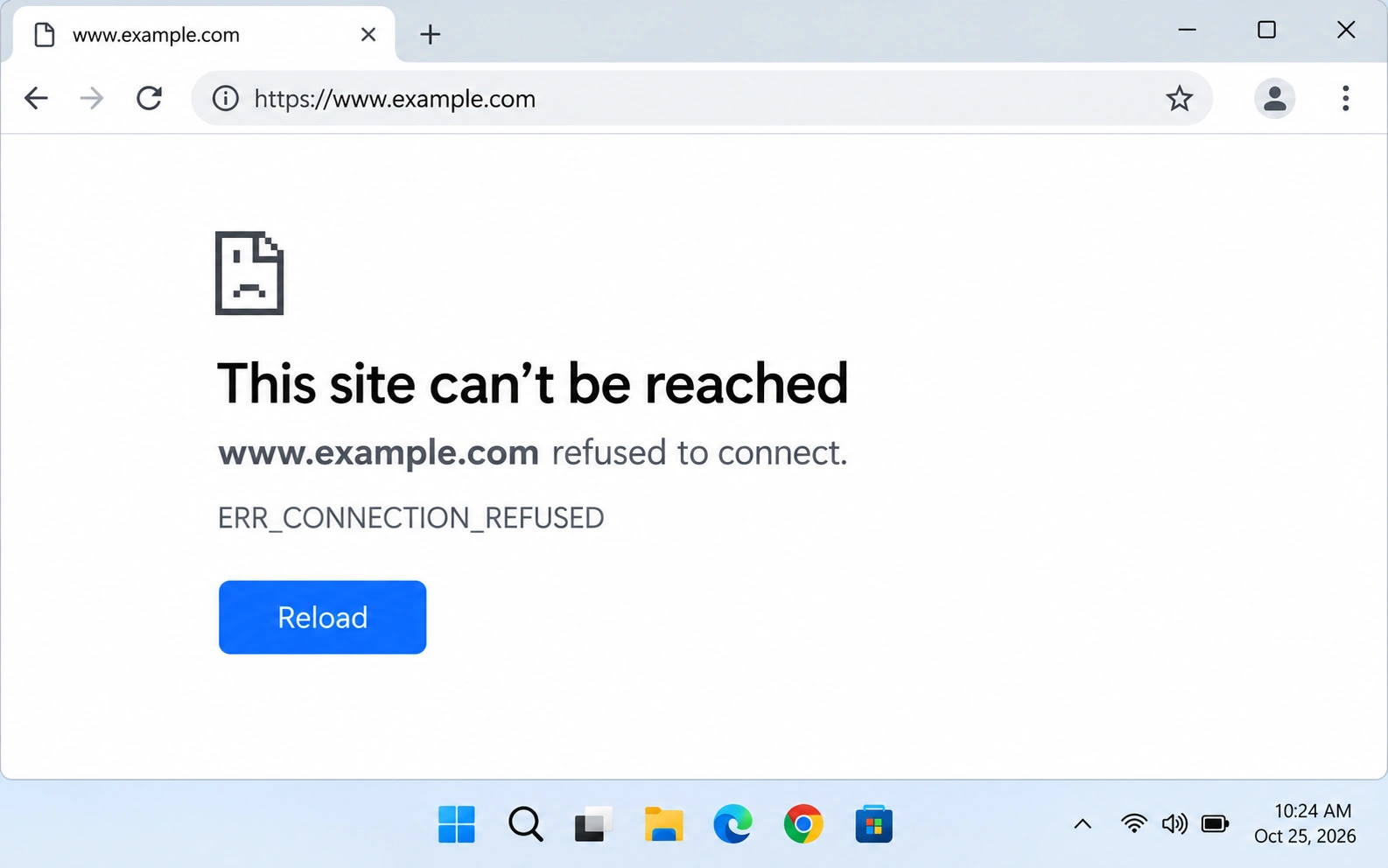
The exact message and layout may vary depending on your Chrome version.
A refused connection is different from a timeout. With a timeout, Chrome waits for a connection attempt to complete but doesn't receive the necessary response within the allowed time.
Important: ERR_CONNECTION_REFUSED doesn't prove that the website itself is responsible. A proxy, local application, or network security system can also refuse connections.
Why Does Chrome Show ERR_CONNECTION_REFUSED?
Several issues can produce the same error.
The website or service isn't accepting connections
The website's server may be temporarily unavailable, misconfigured, or not listening on the expected network port.
If the issue is on the server, changing Windows settings won't necessarily help.
The website address or port is incorrect
An incorrect address or port may direct Chrome to a service that isn't available.
This is especially common with local applications and development servers.
A VPN or proxy is interfering
VPNs and proxies change how your computer reaches websites. A malfunctioning connection or incorrect configuration can prevent access.
Firewall or security software restrictions
A security product or network administrator may have configured a rule that blocks or rejects certain connections.
Chrome extensions or browser settings
Extensions that manage VPN connections, proxies, privacy, or web filtering may interfere with website access.
Temporary network problems
Router issues or changes to your network configuration can contribute to connection failures.
The best fix depends on where the connection is failing.
Before You Begin: Identify the Problem
You don't need to try every fix in this article.
First, identify which situation matches your problem.
If only one website shows ERR_CONNECTION_REFUSED
Check the website address.
Try the website in Microsoft Edge.
Test it on your phone using mobile data.
Check the website's official status page if one is available.
Start with Fix 1.
If the website fails on several devices and independent networks, the problem may be on the website's side.
If several websites show ERR_CONNECTION_REFUSED
Check whether your Wi-Fi or Ethernet connection works.
Try another browser.
Review any active VPN or proxy.
Check whether other devices on your network have similar problems.
Start with Fix 5 or Fix 7, depending on your symptoms.
If the website works in Edge but not Chrome
Restart and update Chrome.
Try Incognito mode.
Check extensions.
Investigate stored site data only if earlier checks suggest a Chrome-specific problem.
Start with Fix 2 and Fix 3.
If the error appears on localhost
If you're opening an address such as http://localhost:3000, skip the general website fixes and go directly to the ERR_CONNECTION_REFUSED on Localhost section.
Safety precautions before changing settings
Follow these precautions throughout the guide:
Test the website after each change and stop when it works.
Record your original settings before modifying a VPN, proxy, or network configuration.
Don't disable Windows Firewall or antivirus protection as a general troubleshooting method.
Don't reset Windows networking just because one website fails.
On a work or school computer, contact your administrator before changing managed security or network settings.
These precautions help you avoid creating new problems while trying to solve the original one.
Fix 1: Check the Website Address and Availability
Best for: ERR_CONNECTION_REFUSED on one website.
Start by confirming that you're connecting to the correct website or service.
Step 1: Verify the website address
Click Chrome's address bar.
Check the website address for spelling mistakes.
Remove accidental spaces or incorrect characters.
Confirm that you're using the correct address and port, if applicable.
Press Enter to try again.
If you followed a link from another page, try opening the website's main homepage.
Step 2: Reload the website
Press Ctrl + R or click Chrome's Reload button.
If the error resulted from a temporary service interruption, the website may load after a short wait.
Step 3: Test another device or network
Open the same website on your phone using mobile data rather than your home Wi-Fi.
Works on mobile data: Your computer or local network may be involved.
Fails on mobile data too: The website may be unavailable or restricting connections.
Neither result proves the cause on its own.
Step 4: Check the website's status
Look for an official status page or outage announcement from the website operator.
If the service is experiencing an outage, wait for the operator to restore it.
Expected result: The website may load after an address correction or temporary outage. If the destination isn't accepting connections, local troubleshooting may not resolve the problem.
Fix 2: Restart and Update Google Chrome
Best for: A website that works in another browser but not Chrome.
Restarting Chrome is a simple way to rule out temporary browser problems.
Step 1: Completely close Chrome
Save any unfinished work in Chrome.
Click Chrome's three-dot menu.
Select Exit.
Open Chrome again.
Try the affected website.
Using Exit helps close Chrome's browser windows rather than merely closing one tab.
Step 2: Check for Chrome updates
Open Google Chrome.
Type
chrome://settings/helpin the address bar.Press Enter.
Wait for Chrome to check for available updates.
Select Relaunch if Chrome installs an update.
If Chrome is already up to date, continue to Fix 3.
Expected result: A restart or update may resolve a Chrome-specific software problem. It won't repair a website server that's refusing connections.
Fix 3: Test Incognito Mode and Chrome Extensions
Best for: A website that works in another browser but fails in regular Chrome.
Some Chrome extensions modify network requests, proxy settings, or website access.
Step 1: Test Incognito mode
Open Chrome.
Press Ctrl + Shift + N.
Enter the affected website's address.
Check whether it loads.
Most extensions are disabled in Incognito by default unless you've specifically allowed them.
If the website works in Incognito: An extension, stored site data, or another browser-profile setting may be involved.
Step 2: Temporarily disable extensions
Open Chrome.
Enter
chrome://extensionsin the address bar.Press Enter.
Turn off your extensions using their toggle switches.
Reload the affected website.
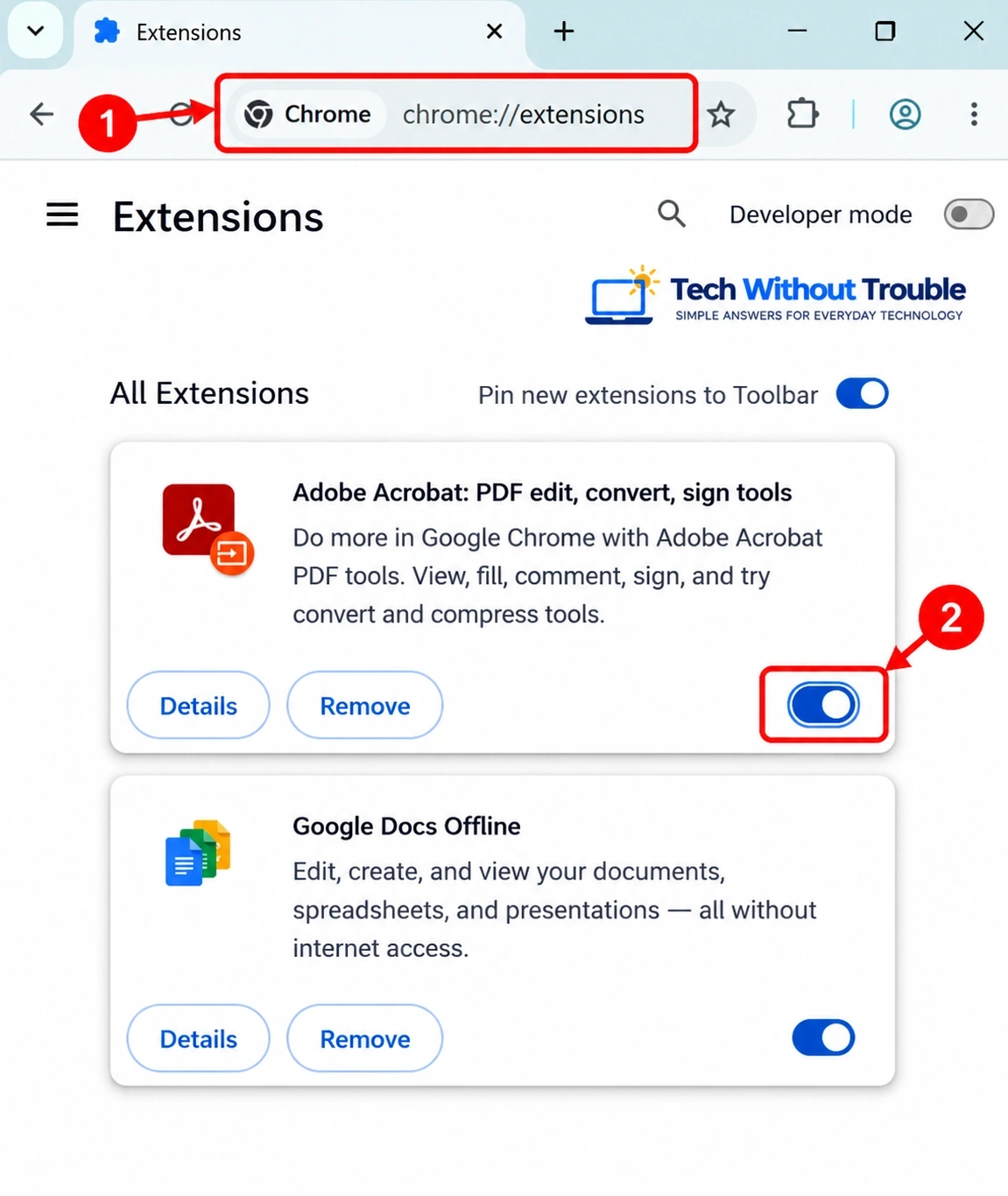
If the website works, re-enable extensions one at a time and test after each change.
Pay particular attention to extensions that provide VPN, proxy, privacy, or web-filtering features.
Expected result: If an extension was interfering with the connection, disabling it may restore access.
You don't need to uninstall every extension. Identify the specific one responsible.
Fix 4: Clear Chrome Browsing Data Only When Appropriate
Best for: A website that works in Incognito but not in your normal Chrome window, after extensions have been ruled out.
Clearing browser data may help when stored website information contributes to a loading problem.
However, clearing cookies or cache won't directly fix a server that's actively refusing connections.
Skip this fix if the website fails across different browsers, devices, and networks.
Option A: Remove data for the affected website
Open Chrome.
Go to Settings → Privacy and security → Site settings.
Open the option for viewing permissions and data stored across sites.
Search for the affected website.
Remove its stored site data.
Reopen the website.
The exact labels may vary by Chrome version.
Before proceeding: Removing a site's data can sign you out of that website and reset some of its preferences.
Option B: Clear cached images and files
If you suspect a broader Chrome caching issue:
Open Chrome.
Press Ctrl + Shift + Delete.
Choose an appropriate time range.
Select Cached images and files.
Leave other categories unchecked unless you intend to remove them.
Click Delete data.
Reload the website.
Don't select saved passwords or other personal information unnecessarily.
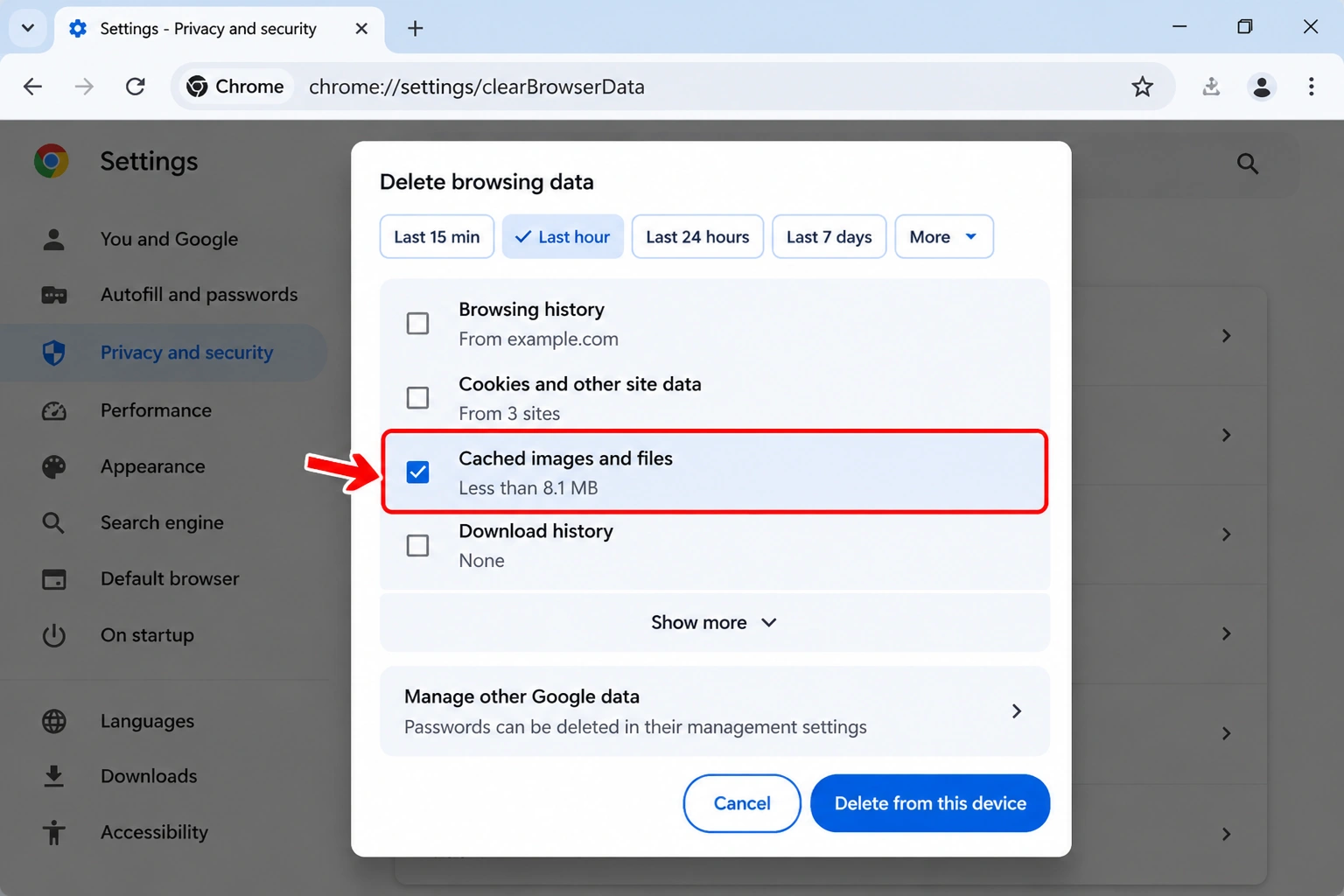
Expected result: Clearing relevant browser data may help if the problem is associated with your Chrome profile.
If the destination is genuinely refusing connections, this step is unlikely to help.
Fix 5: Check VPN and Proxy Settings
Best for: Connection errors that started after enabling a VPN, changing networks, or modifying proxy settings.
A VPN or proxy can affect the route Chrome uses to reach websites.
Step 1: Test your personal VPN
If you're using a personal VPN:
Open the VPN application.
Note your current connection or server.
Disconnect temporarily.
Return to Chrome.
Reload the affected website.
If the website works without the VPN, investigate the VPN's connection or server configuration.
You can try a different VPN server or consult the provider's official support documentation.
Security note: Disconnecting a VPN changes how your traffic travels over the network and may reduce the privacy protections you expect. Don't disconnect a work or school VPN without permission.
Step 2: Review Windows 11 proxy settings
Press Windows + I to open Settings.
Select Network & internet.
Click Proxy.
Review the Automatically detect settings.
Check whether Use setup script is configured.
Review Use a proxy server under Manual proxy setup.
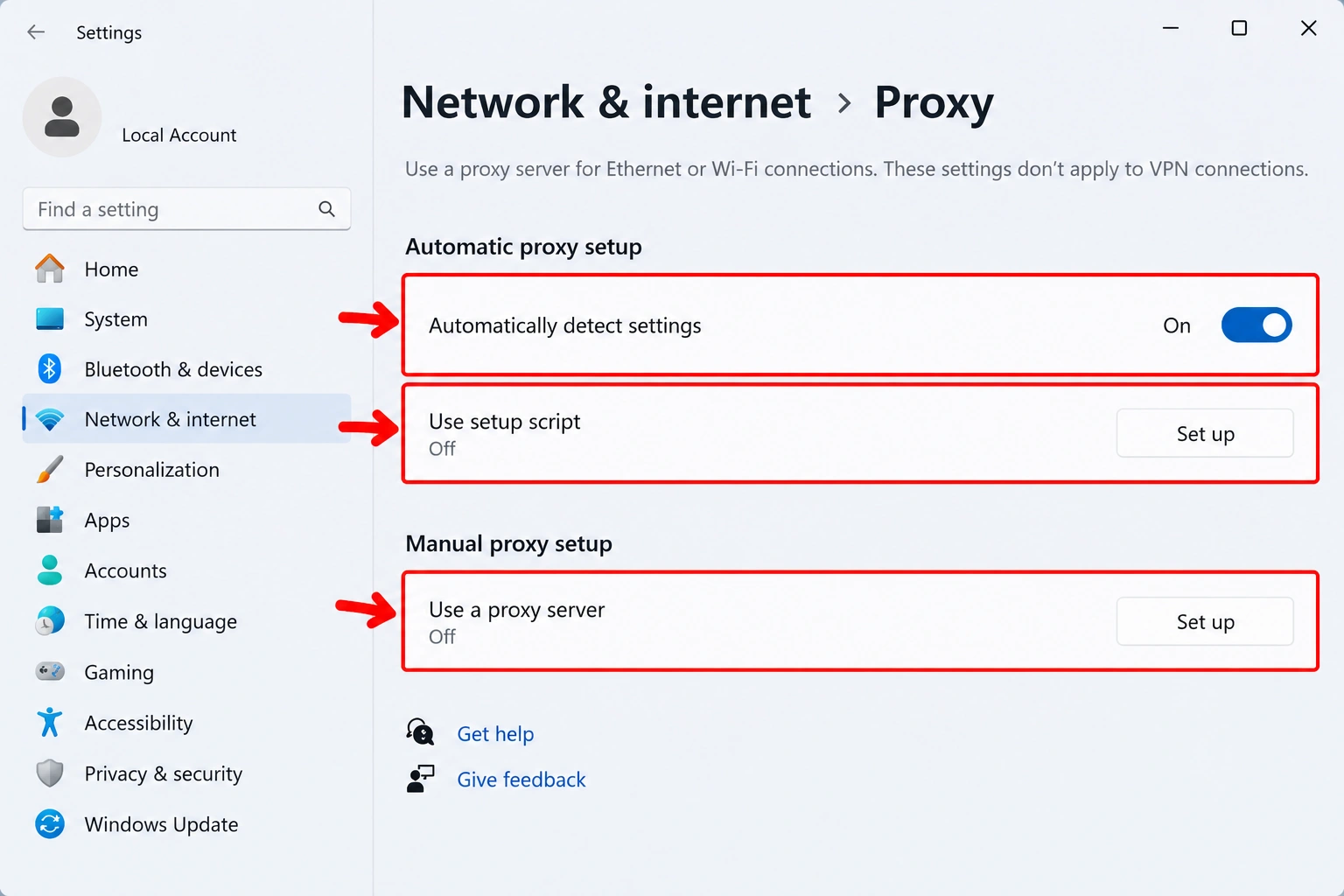
If a manual proxy or setup script is enabled unexpectedly, investigate why.
On a personal computer, you can correct an unintended configuration if you're certain it isn't required.
Before making changes: Record the original proxy settings so you can restore them if necessary.
Don't disable a proxy required by your employer, school, or network administrator.
Expected result: Correcting an unintended proxy setting or malfunctioning personal VPN may restore access.
For more information, see Microsoft's guide to proxy settings in Windows.
Fix 6: Check Firewall and Security Software Restrictions
Best for: Cases where a security application reports blocking Chrome or a particular website.
Firewalls and security products can restrict connections, but ERR_CONNECTION_REFUSED doesn't automatically indicate a firewall problem.
Don't disable Windows Firewall or antivirus protection to test this error.
Step 1: Check Windows Security
Open the Start menu.
Search for Windows Security.
Open Firewall & network protection.
Confirm that protection is enabled for your active network.
Important: Windows Firewall being enabled is normal. It doesn't mean the firewall caused ERR_CONNECTION_REFUSED. Only investigate firewall rules when a security notification, log, or administrator points to a specific block.
If Windows reports that another security product manages the firewall, review that product's settings instead.
Step 2: Look for a specific security block
If you use a third-party antivirus, firewall, or web-filtering application:
Open the security application's dashboard.
Check for recent notifications or connection-blocking logs.
Look for an entry involving Chrome or the affected website.
Follow the product's official instructions if a specific incorrect rule is identified.
Don't create broad firewall exceptions or open ports unnecessarily.
Step 3: Contact your administrator when appropriate
If the computer belongs to an employer or school, network restrictions may be intentional.
Ask the administrator to review the affected website or connection rather than changing managed rules yourself.
Windows Firewall's ordinary allowed-app list primarily concerns inbound access. Chrome's normal outbound web browsing generally doesn't require a new inbound exception.
Expected result: If a specific security rule is responsible, correcting that rule through the appropriate administrator or security product may restore access.
If there's no evidence of a security block, move on rather than changing firewall settings.
For official guidance, see Microsoft's Firewall and network protection documentation.
Fix 7: Restart Your Network Connection
Best for: Multiple websites failing, intermittent connectivity, or several devices experiencing network problems.
A temporary network problem can sometimes contribute to connection errors.
Step 1: Reconnect to Wi-Fi
Click the network icon on the Windows 11 taskbar.
Open the Wi-Fi connections list.
Disconnect from your current network.
Wait approximately 15 seconds.
Reconnect.
Test the website again.
If you're using Ethernet, check the cable connection and reconnect it if appropriate.
Step 2: Restart the router only if broader problems exist
If several devices on the same network are experiencing connectivity issues:
Turn off the router or disconnect its power.
Wait approximately 30 seconds.
Restore power.
Wait for the router to reconnect.
Test the website again.
Warning: Don't press the router's factory-reset button. That can erase your network configuration.
If only one website fails while everything else works, a router restart is usually unnecessary.
Expected result: Restarting the connection may resolve temporary network problems. It won't repair an unavailable website server.
Fix 8: Troubleshoot Windows 11 Network Settings
Best for: Multiple websites or applications failing when simpler network checks haven't helped.
Windows 11 includes troubleshooting tools that can help identify broader connection problems.
Step 1: Run network diagnostics with Get Help
Microsoft provides network troubleshooting through the Get Help application in Windows 11.
Open the Windows Start menu.
Search for Get Help and open it.
Search for
connect to network and internet.Select Run network diagnostics if the option appears.
Follow the instructions shown by the troubleshooter.
Test the affected websites again.
The exact wording and available troubleshooting options may vary depending on your Windows version and Get Help updates.
If you can't find the diagnostic option, you can also check Settings → System → Troubleshoot → Other troubleshooters for available network troubleshooting tools.
Step 2: Flush DNS only if outdated address information is suspected
This step is optional.
Consider it if:
The website recently changed servers or addresses.
You recently changed DNS settings.
The error started after switching networks and you suspect stale DNS information.
To clear Windows' local DNS resolver cache:
Open the Start menu.
Search for Command Prompt.
Open Command Prompt.
Enter:
ipconfig /flushdnsPress Enter.
Wait for the confirmation message.
Reopen Chrome and test the website.
What this does: It clears cached DNS resolver information so Windows can obtain fresh records when necessary.
What it doesn't do: It doesn't repair a server that isn't accepting connections.
If there's no reason to suspect outdated DNS information, skip this step.
Step 3: Consider Network reset only for persistent, broader problems
Windows 11 provides a Network reset feature at:
Settings → Network & internet → Advanced network settings → Network reset
This is a last-resort option, not a routine fix for ERR_CONNECTION_REFUSED.
A network reset can reinstall network adapters, restore networking components to default settings, and require VPN or other networking software to be configured again.
Don't perform a Network reset just because one website refuses to connect.
If you're using a managed computer, consult your administrator first.
For further assistance, see Microsoft's guide to fixing Wi-Fi connection issues in Windows.
Fix 9: Reset Chrome Settings as a Last Resort
Best for: A problem limited to Chrome after restarting, updating, testing extensions, and checking relevant site data.
If other browsers work normally and the earlier Chrome-specific checks haven't helped, restoring Chrome's default settings may be worth considering.
This is not a guaranteed solution for ERR_CONNECTION_REFUSED.
How to reset Chrome settings
Open Chrome.
Enter
chrome://settings/resetin the address bar.Press Enter.
Select Restore settings to their original defaults.
Review Chrome's explanation of the changes.
Select Reset settings if you want to proceed.
Restart Chrome and test the website.
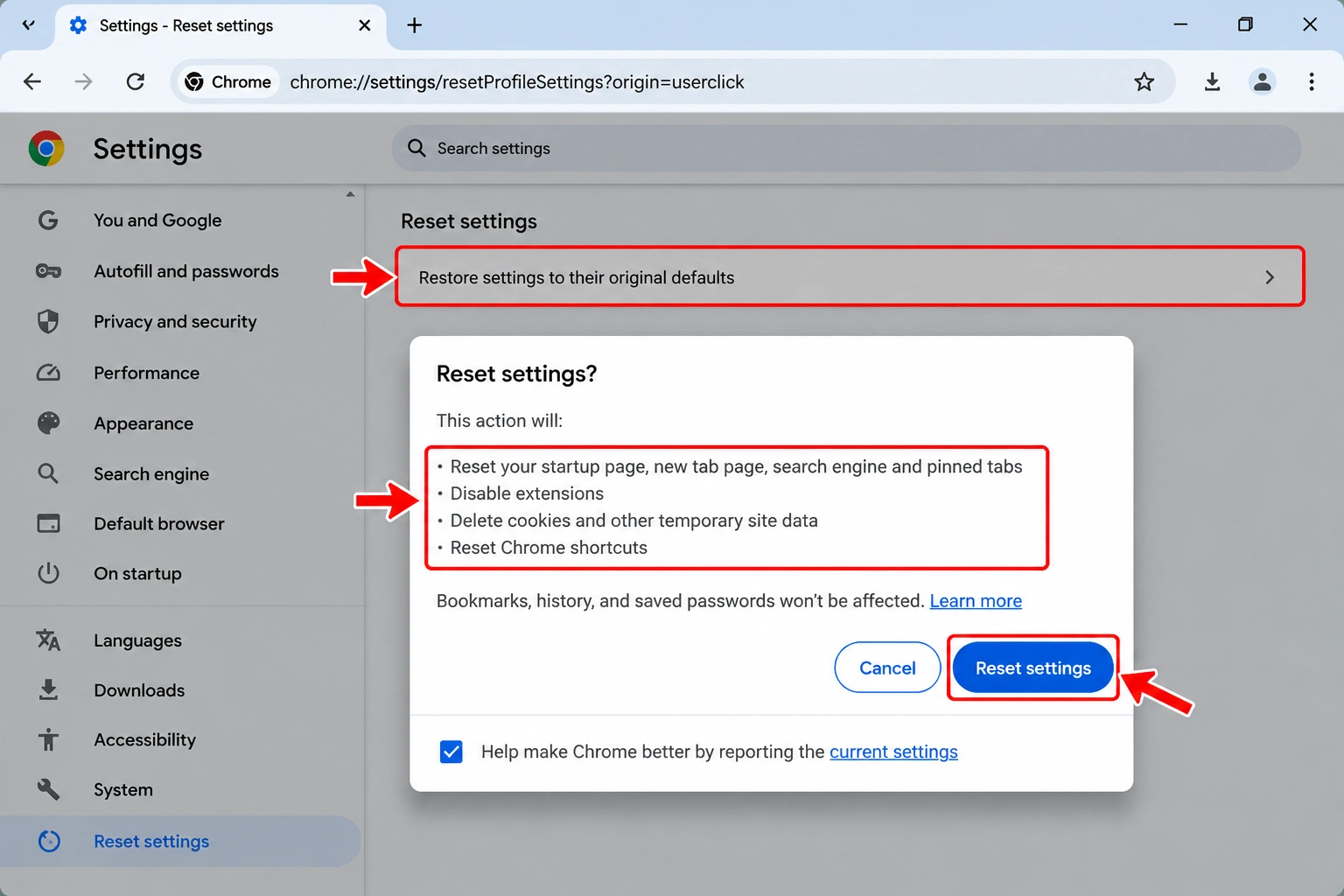
What happens when you reset Chrome?
Resetting Chrome can affect settings such as:
Your default search engine.
Startup pages and pinned tabs.
Extensions and themes.
Cookies, site data, and site permissions.
Your saved bookmarks and passwords are generally preserved.
Some settings may also be affected across devices using Chrome synchronization.
Before resetting: Review the confirmation message carefully. If you rely on customized Chrome settings or extensions, be prepared to configure them again.
For details, read Google's guide to resetting Chrome settings.
Expected result: Resetting may resolve a Chrome configuration problem. It won't make an unavailable server or stopped local application accept connections.
Special Case: ERR_CONNECTION_REFUSED on Only One Website
If Chrome displays ERR_CONNECTION_REFUSED on one website while others work, focus on that destination first.
Follow this sequence:
Confirm the address is correct.
Try the website in Microsoft Edge.
Test it using mobile data on another device.
Check the website's official status information.
Contact the website operator if the issue continues.
If the website fails across different devices and independent networks, the problem may be with the website or an access restriction.
If it works on other networks but not yours, investigate your network's configuration or restrictions.
Avoid resetting your entire network for a single failing website.
Special Case: ERR_CONNECTION_REFUSED in Chrome but Not Edge
If a website loads in Microsoft Edge but not Chrome, prioritize Chrome-specific checks.
Try the following in order:
Restart and update Chrome using Fix 2.
Test Incognito mode using Fix 3.
Check extensions using Fix 3.
Clear relevant site data only if appropriate using Fix 4.
Consider Chrome reset only as a last resort using Fix 9.
Chrome and Edge can have different extensions, settings, and browsing profiles even though they share some underlying technology.
This comparison is a useful diagnostic clue, not absolute proof of the cause.
Special Case: ERR_CONNECTION_REFUSED on Localhost
This section is only for people opening local applications or development servers. If you're trying to visit a normal website, you can skip it.
If Chrome displays ERR_CONNECTION_REFUSED when opening an address such as:
http://localhost:3000
the problem is usually different from a public website connection error.
Localhost refers to your own computer.
Developers and some desktop applications use localhost addresses to provide access to locally running services.
Check 1: Confirm the local application is running
Make sure the program or local server you're trying to access has started successfully.
If the application isn't running, Chrome may have nothing to connect to.
Check the application's window, console, or startup instructions.
Check 2: Confirm the correct port number
Local applications may use ports such as:
300051738080
These are examples, not universal defaults.
If your application is listening on port 5173 but you open localhost:3000, the connection may be refused.
Use the address and port displayed by the application or specified in its documentation.
Check 3: Check whether a service is listening on the port
If you're comfortable using Command Prompt, you can inspect the relevant port.
Open the Start menu.
Search for Command Prompt.
Open Command Prompt.
Enter the following command, replacing
3000with your application's port:netstat -ano | findstr :3000Press Enter.
Review the results carefully.
Look for a TCP entry showing the expected local port with a LISTENING state.
Important: The findstr command searches for matching text, not an exact port number. It may also display ports such as 30000. Check the complete local address and port in the output to confirm that the application is listening on the port you intended.
If no matching listening entry appears for the correct port, the application may not have started or may be listening on a different address or port.
A matching entry doesn't guarantee the correct application is running. It only shows that Windows reports a process listening on that endpoint.
Check 4: Review application error messages
If the local service won't start, check its logs or console output.
Common messages include:
The requested port is already in use.
A required configuration file is missing.
The application failed during startup.
The service stopped unexpectedly.
Follow the application's documentation to resolve its specific startup problem.
Security note: Don't open public firewall ports or disable security software just to troubleshoot localhost.
When Should You Contact Support?
Sometimes ERR_CONNECTION_REFUSED can't be resolved through changes on your computer.
Here's how to identify the appropriate next step.
Contact the website operator
If one website fails across multiple devices and independent networks, contact the website's support team.
Include the website address, the exact error code, and when the problem started.
Contact your internet provider or network administrator
If multiple websites fail on the same network, other devices have similar problems, and basic connectivity checks haven't helped, contact your internet service provider or network administrator.
Contact your work or school IT team
If a managed VPN, proxy, firewall, or security tool appears to be blocking the connection, ask your IT team to investigate.
Don't bypass intentional security restrictions.
Contact the local application's developer or support team
If ERR_CONNECTION_REFUSED occurs on localhost, check the application's startup logs and documentation.
If the service still won't start or listen on the expected port, contact the application's developer or support provider.
Helpful information to provide: The exact error message, affected website or local address, browser version, whether other websites work, and the troubleshooting steps you've already tried.
ERR_CONNECTION_REFUSED vs. Other Chrome Errors
Several Chrome connection errors can appear similar, but they don't always have the same cause.
ERR_CONNECTION_REFUSED vs. ERR_CONNECTION_RESET
ERR_CONNECTION_REFUSED means the connection attempt was refused.
ERR_CONNECTION_RESET means a connection was interrupted or reset.
If you see ERR_CONNECTION_RESET, follow our dedicated guide:
How to Fix ERR_CONNECTION_RESET in Chrome
ERR_CONNECTION_REFUSED vs. ERR_CONNECTION_TIMED_OUT
ERR_CONNECTION_REFUSED indicates that the connection attempt was rejected.
ERR_CONNECTION_TIMED_OUT indicates that the connection attempt didn't complete within the allowed time.
For timeout errors, see:
How to Fix ERR_CONNECTION_TIMED_OUT in Chrome
ERR_CONNECTION_REFUSED vs. DNS_PROBE_FINISHED_NXDOMAIN
ERR_CONNECTION_REFUSED occurs when Chrome attempts a connection but it is refused.
DNS_PROBE_FINISHED_NXDOMAIN indicates that DNS couldn't resolve the requested domain name.
If Chrome shows a DNS error, read:
How to Fix DNS_PROBE_FINISHED_NXDOMAIN in Chrome
Frequently Asked Questions
1. What does ERR_CONNECTION_REFUSED mean in Chrome?
It means Chrome couldn't establish the requested connection because the connection attempt was refused. The problem may involve the destination website, a local application, a proxy, or a network security component.
2. Why does ERR_CONNECTION_REFUSED happen on only one website?
The website may be unavailable, misconfigured, or restricting connections. Check its address and test it on another browser and network before changing Windows settings.
3. How do I fix ERR_CONNECTION_REFUSED in Chrome on Windows 11?
Start by checking whether the error affects one website or several. Test another browser, restart Chrome, and check extensions. Investigate VPN, proxy, and network settings only if your symptoms suggest they're involved.
4. Can a VPN cause ERR_CONNECTION_REFUSED?
Yes. A VPN connection or its configuration may interfere with access to some websites. Testing without a personal VPN can help identify whether it's involved.
5. Does ERR_CONNECTION_REFUSED mean my internet is disconnected?
No. Your internet connection may be working normally even if one website or service refuses to connect.
6. Should I disable Windows Firewall to fix this error?
No. Disabling Windows Firewall can create security risks and isn't a reliable general solution. Investigate specific blocking rules only when there's evidence of a security restriction.
7. Will clearing Chrome's cache fix ERR_CONNECTION_REFUSED?
Usually not if the destination is genuinely refusing connections. Clearing browser data may help when a Chrome-specific profile or stored-data issue contributes to the problem.
8. Why does localhost show ERR_CONNECTION_REFUSED?
The local application may not be running, may be listening on a different port, or may not be listening on the address Chrome is trying to reach.
9. Is ERR_CONNECTION_REFUSED the same as ERR_CONNECTION_RESET?
No. A refused connection isn't accepted, while a reset connection is interrupted. The appropriate troubleshooting steps may differ.
10. Can ERR_CONNECTION_REFUSED resolve itself?
Yes. A temporary server outage or network issue may clear without intervention. Persistent configuration or service problems usually require action from the responsible user or operator.
Final Thoughts
ERR_CONNECTION_REFUSED in Google Chrome doesn't automatically mean your Windows 11 computer or internet connection is broken.
The most useful first step is to identify where the connection is failing.
If one website refuses to connect, check the destination before changing your computer. If the problem occurs only in Chrome, investigate browser extensions and settings. If several websites fail, review your network, VPN, proxy, and security configuration.
For localhost errors, confirm that the local application is running and listening on the correct address and port.
Start with simple, reversible checks. Test after each change, stop when the problem is resolved, and avoid disabling security protections or resetting network settings unnecessarily.