How to Fix ERR_CONNECTION_RESET in Chrome on Windows 11 and 10
Seeing ERR_CONNECTION_RESET in Google Chrome? Learn how to troubleshoot connection errors on Windows 11 and 10 with simple, step-by-step instructions.
Software · By Eshant Verma · Published
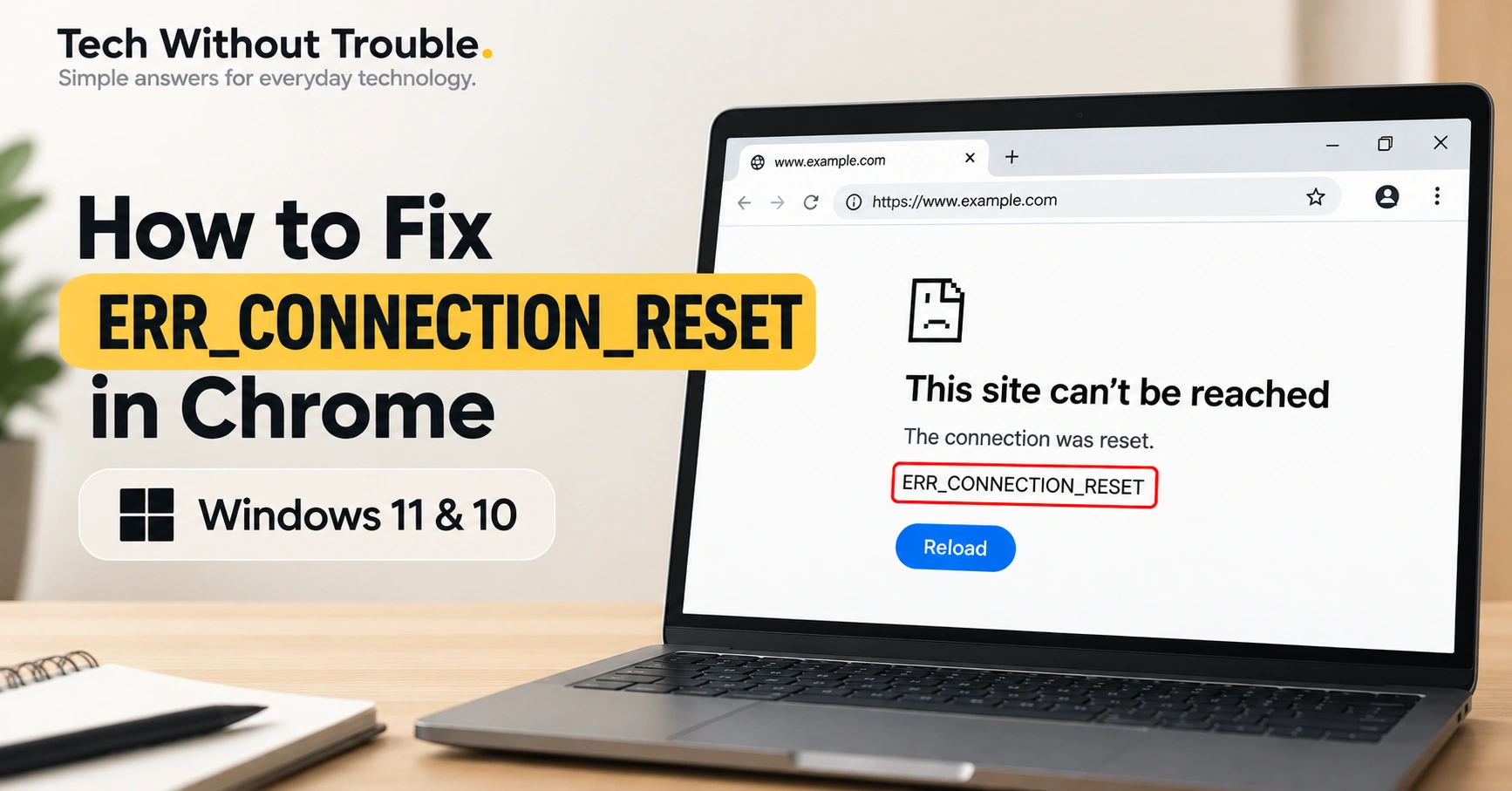
You're trying to open a website in Google Chrome, but instead of loading the page, Chrome displays an error:
This site can't be reached
ERR_CONNECTION_RESET
The error may appear on one website or several. Sometimes other websites load normally, while the affected page refuses to open.
ERR_CONNECTION_RESET doesn't necessarily mean your internet connection is down. The problem could involve Chrome, a browser extension, a VPN, a proxy, your local network, or the website itself.
In this guide, we'll explain what the error means and walk through practical troubleshooting steps for Windows 11 and Windows 10. Start with the simple checks and move to more advanced fixes only when necessary.
What Does ERR_CONNECTION_RESET Mean?
ERR_CONNECTION_RESET means that a network connection was unexpectedly closed or reset while Chrome was trying to communicate with a website.
Normally, your browser establishes a connection with a website's server and receives the information needed to display the page. When that connection is reset, Chrome cannot complete the request.
A connection reset can happen for several reasons:
A temporary problem with your internet connection or router.
A VPN, proxy, firewall, or security application interfering with traffic.
A browser extension affecting the connection.
A problem with the website's server or its network.
An issue with your computer's network configuration.
The error alone doesn't identify the exact cause.
Before You Start: Identify Where the Problem Occurs
Spend a minute checking whether the error affects one website, one browser, or your entire connection.
What you notice, What it may indicate: Only one website fails a problem with that website, its server, or the network route. Several websites fail in Chrome. A Chrome, network, VPN, or security-related issue. The website works in another browser: A Chrome-specific setting or extension may be involved. The website works on mobile data but not Wi-Fi. Your router, ISP, or local network may be involved. Multiple devices on the same Wi-Fi have the problem. A network-level issue is more likely
These clues won't prove the cause, but they can help you avoid unnecessary changes.
Google recommends starting with basic checks and isolating browser-related issues before attempting more advanced troubleshooting. See Google's official Chrome connection troubleshooting guide.
If you use a work or school computer, check with your IT administrator before changing proxy, VPN, firewall, or network settings.
Before you begin: You don't need to complete every step in this guide. After each relevant check, try opening the affected website again. If it works, stop troubleshooting. Skip steps that don't apply to your situation, and avoid changing settings you don't understand.
1. Reload the Page and Restart Chrome
Start with the easiest fixes.
Press Ctrl + R to reload the page.
If the error continues, close Chrome completely.
Open Chrome again.
Return to the affected website.
You can also try opening a different website to check whether your connection is working.
Check for Chrome updates if the problem continues
If restarting Chrome doesn't help, check whether an update is available.
Open Chrome's three-dot menu.
Select Help → About Google Chrome.
Allow Chrome to check for updates.
If an update is installed, select Relaunch when prompted.
Test the website again.
If Chrome is already up to date, continue troubleshooting.
2. Test the Website in Chrome Incognito Mode
Incognito mode is a useful diagnostic test because most Chrome extensions are disabled in Incognito unless you've explicitly allowed them to run there.
To open an Incognito window:
Open Google Chrome.
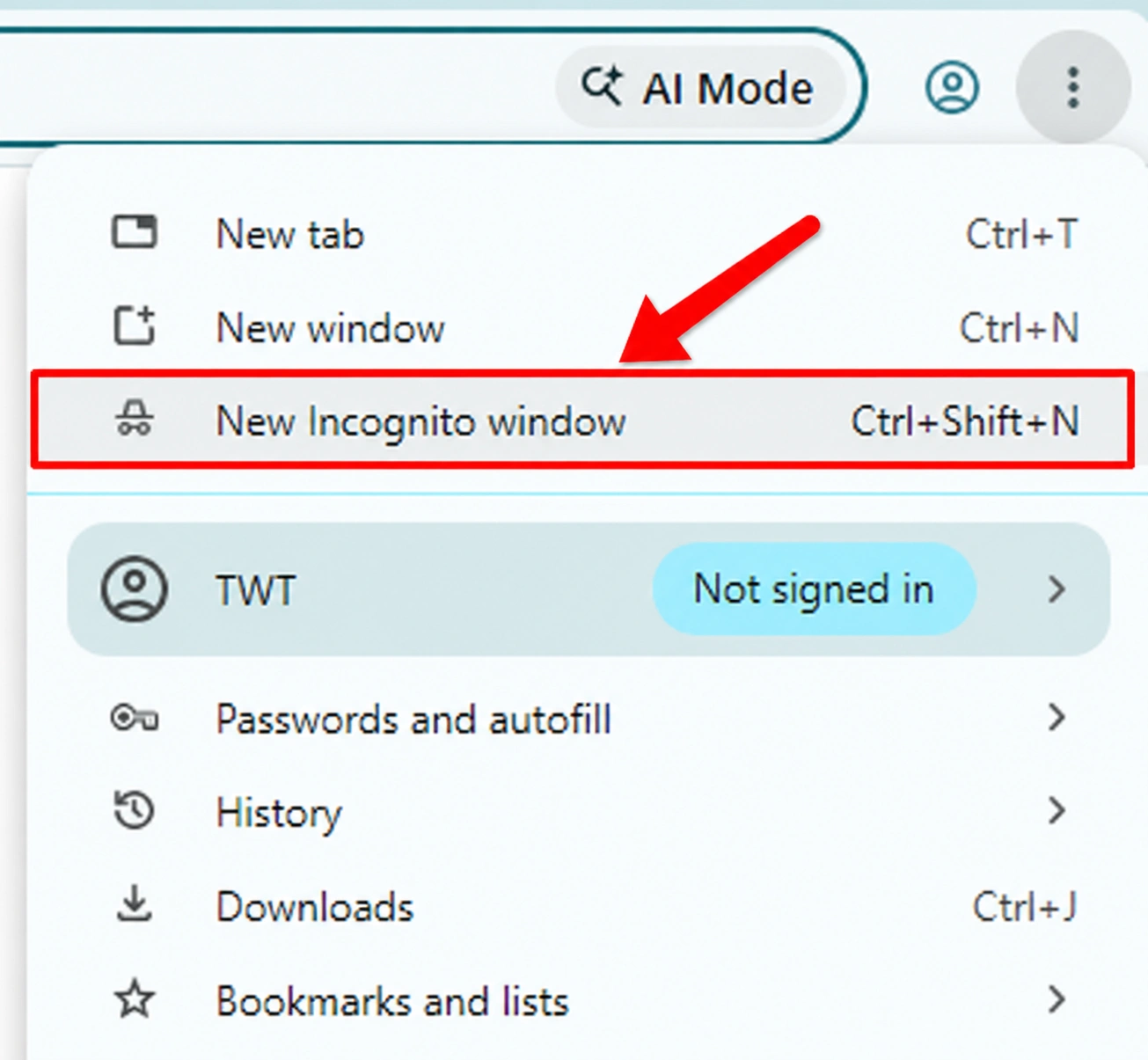
Click the three-dot menu in the upper-right corner.
Select New Incognito window.
Enter the address of the website that was showing the error.
You can also press Ctrl + Shift + N.
If the website works in Incognito: A Chrome extension or another difference between your regular and Incognito sessions may be involved. Try the next step.
If the website still fails: Continue troubleshooting. Incognito mode doesn't bypass every network or security problem.
For additional details, see Google's guide to browsing in Incognito mode.
3. Temporarily Disable Chrome Extensions
Some extensions modify website traffic, block requests, or interact with privacy and security settings.
To test whether an extension is contributing to the error:
Open Chrome.
Type
chrome://extensionsinto the address bar and press Enter.Turn off your extensions temporarily.
Reload the affected website.
If the website works, turn extensions back on one at a time, testing after each change.
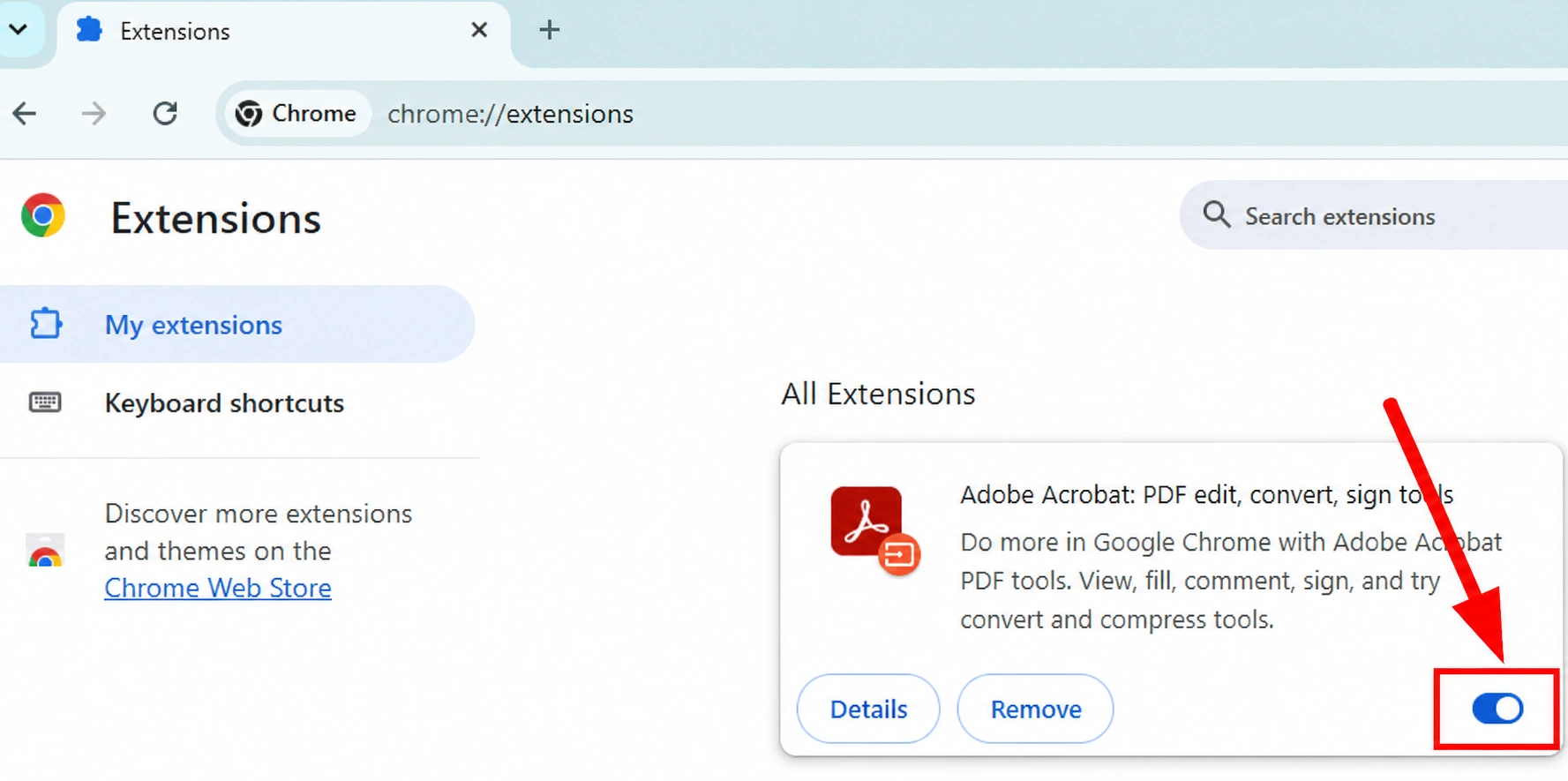
If the error returns after enabling a particular extension, that extension may be involved. Check its settings or whether an update is available.
If disabling extensions doesn't help, turn them back on before moving to the next step.
You don't need to uninstall all your extensions to perform this test.
Google also recommends testing extensions when troubleshooting Chrome connection problems. See Google's Chrome troubleshooting instructions.
4. Check Your VPN and Proxy Settings
A VPN or proxy routes network traffic through another service or server. If that connection is interrupted or incorrectly configured, websites may fail to load.
Check your VPN
If you're connected to a personal VPN:
Open your VPN application.
Disconnect temporarily.
Reload the affected website.
Reconnect after testing.
If the website works only when the VPN is disconnected, investigate the VPN's server selection, connection settings, or service status.
Important: If your VPN is required by your employer or school, don't disconnect it without permission.
If you don't use a VPN, skip this check.
Check proxy settings in Windows 11
Press Windows + I to open Settings.
Select Network & internet.
Scroll down and click Proxy.
Under Automatic proxy setup, review whether automatic detection or a setup script is configured.
Under Manual proxy setup, find Use a proxy server.
Check whether it shows On or Off.
If it shows Off, no manual proxy is enabled through this Windows setting. You don't need to change anything.
If Use a proxy server is On, this doesn't necessarily mean something is wrong. Some workplaces, schools, and VPN applications require a proxy. Check whether the configuration is expected before making any changes. If you're unsure, contact your network administrator or VPN provider.
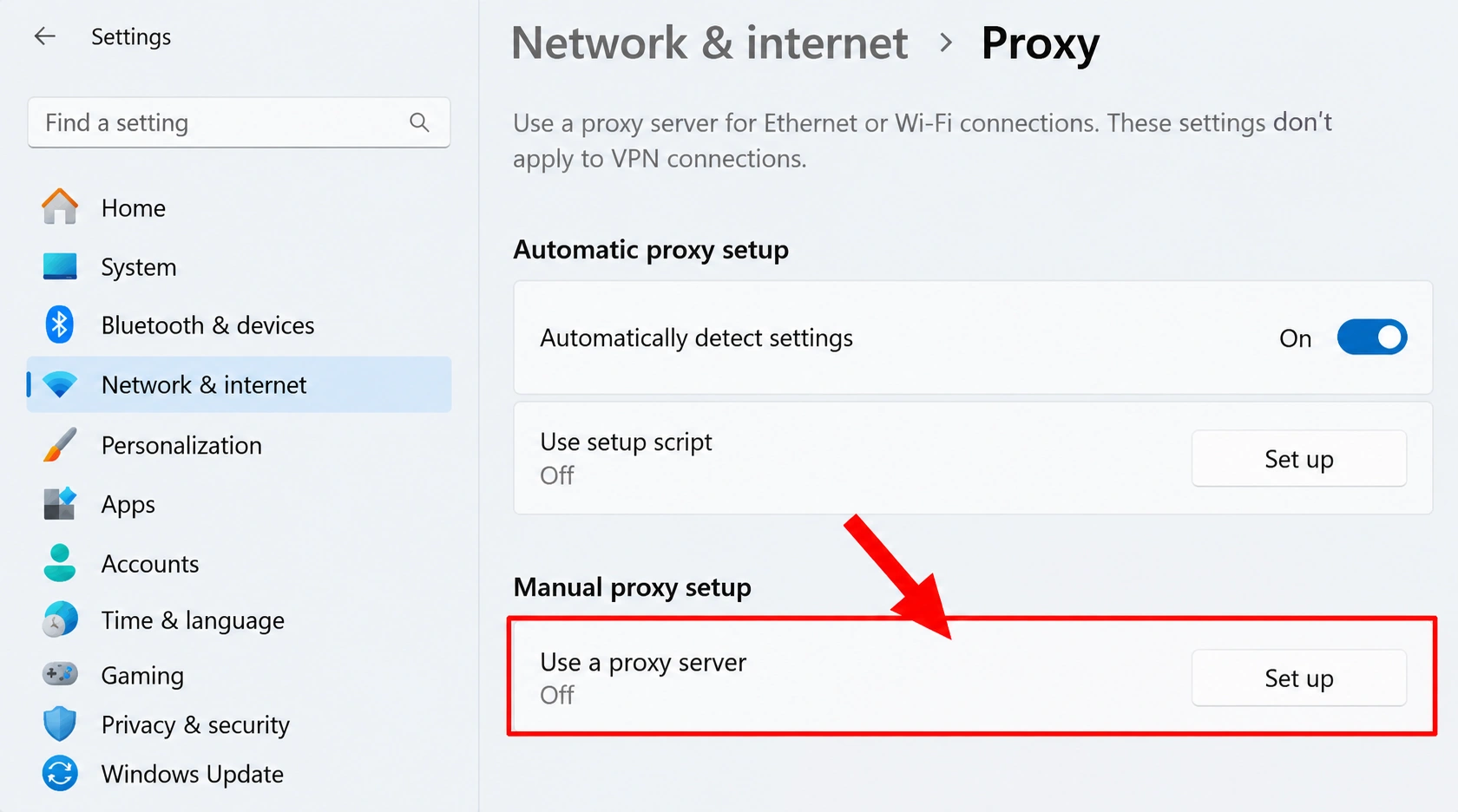
Important: Don't click Set up, enable a proxy, or change an existing configuration unless you know your network requires it.
Check proxy settings in Windows 10
Press Windows + I to open Settings.
Select Network & Internet.
Click Proxy in the left sidebar.
Under Automatic proxy setup, review Automatically detect settings and Use setup script.
Scroll to Manual proxy setup.
Check whether Use a proxy server is switched On or Off.
If it is Off, no manual proxy is enabled through this Windows setting. You don't need to change anything.
If Use a proxy server is On, this doesn't necessarily mean something is wrong. Some workplaces, schools, and VPN applications require a proxy. Check whether the configuration is expected before making any changes. If you're unsure, contact your network administrator or VPN provider.
Important: Don't enable or disable proxy settings without understanding why they're configured. Incorrect changes can interrupt your internet access.
For more information about how Windows proxy settings work, see Microsoft's guide to using a proxy server in Windows. You don't need to set up or change a proxy server unless your network requires one.
5. Restart Your Router and Test Another Device
If the error affects multiple websites or browsers, the problem may be outside Chrome.
First, test the affected website on another device connected to the same Wi-Fi network.
If possible, also test it using a different connection, such as mobile data.
If several devices have the same problem on your home Wi-Fi, restarting the router may help. Only restart a router that you own or are authorized to manage. If you're using a shared, work, or school network, contact the network administrator instead.
Turn off the router using its power button or unplug its power adapter.
Wait approximately 30 seconds.
Restore power.
Allow the router to reconnect fully.
Test the website again.
Avoid pressing the router's Reset button. That button may restore factory settings, which is different from a normal restart.
If the problem continues across devices, your internet service provider or the website's network may be involved.
If other devices and websites work normally, you can skip restarting the router and focus on your computer or browser instead.
6. Clear Chrome's Cached Files
Chrome stores copies of website resources to help pages load faster. Occasionally, clearing cached files can help resolve website-loading problems.
To clear cached images and files:
Open Chrome.
Press Ctrl + Shift + Delete.
In the browsing-data dialog, choose an appropriate time range.
Select Cached images and files.
Make sure all other data types are unchecked.
Click Delete data or the equivalent button shown in your Chrome version.
Reload the affected website.
Important: Clearing cached images and files may temporarily make some websites load more slowly while Chrome downloads fresh copies. It doesn't normally delete saved passwords or bookmarks when only this option is selected.
Clearing cached images and files isn't guaranteed to fix ERR_CONNECTION_RESET, but it's a reasonable browser-level test.
7. Flush the DNS Cache in Windows
Windows stores recently used DNS lookup information in a local cache.
This is an optional troubleshooting step. Flushing the DNS cache may help if Windows has stored outdated or incorrect DNS information. However, ERR_CONNECTION_RESET usually indicates that a connection was interrupted rather than a DNS lookup failure, so this step may not help. You can skip it initially if the problem appears limited to one website.
Windows 11 and Windows 10
Open the Start menu.
Type
cmd.Open Command Prompt.
Enter the following command:
ipconfig /flushdnsPress Enter.
Wait for the confirmation message.
Close Command Prompt and try the website again.
This command clears the Windows DNS resolver cache. It does not delete your personal files or reset your router.
If the error remains, continue to the next relevant step.
8. Check Firewall and Antivirus Software
Windows Firewall and third-party security applications can inspect or restrict network connections.
If a security application is interfering with Chrome, you may notice that the error began after a software installation, update, or settings change.
Try these checks:
Confirm that Windows Security and any third-party security application are up to date.
Check whether your security software displays a warning or blocked-connection notification.
Review any recent changes to firewall, web protection, or network-filtering settings.
If you identify a specific blocked connection, consult the security application's documentation.
Don't turn off your firewall or antivirus protection just to see whether the website loads.
If you're using a managed computer, contact your IT administrator. If you're using third-party security software, its support documentation may explain how to investigate connection blocks safely.
Google identifies security software as one possible factor in Chrome connection problems. See its official Chrome troubleshooting guide.
9. Run the Windows Network Troubleshooter and Consider a Network Reset
If ERR_CONNECTION_RESET occurs across multiple websites and browsers, and simpler troubleshooting hasn't helped, Windows' built-in network troubleshooting tools may help identify a connection problem.
Start with the network troubleshooter. Consider a full network reset only if the problem appears to involve your computer's networking configuration and less disruptive steps haven't helped.
Run the network troubleshooter in Windows 11
Open the Start menu.
Search for Get Help and open the application.
In Get Help, search for network connectivity problems.
Follow the available network troubleshooting guidance.
Review any suggested changes before applying them.
Test the affected website again.
On some Windows 11 versions, you can also find network troubleshooting under Settings → System → Troubleshoot → Other troubleshooters → Network and Internet.
Run the network troubleshooter in Windows 10
Press Windows + I to open Settings.
Select Network & Internet.
Open Status.
Select Network troubleshooter, if available.
Follow the on-screen instructions.
Test the website again.
If the troubleshooter doesn't resolve the issue, review the results before deciding whether additional changes are necessary.
Important: Review any recommended changes before applying them, especially if you're using a work or school computer.
Reset Windows network settings only as a last resort
Should you reset your network?
Consider this step only if multiple websites fail across different browsers on the same computer, the problem appears to involve your Windows network configuration, and simpler troubleshooting hasn't resolved it.
Do not reset your network just because one website displays ERR_CONNECTION_RESET.
If you're unsure whether a reset is appropriate, stop here and contact your internet service provider, computer manufacturer, or IT administrator for guidance.
A network reset can remove and reinstall network adapters and restore related networking settings to their defaults. You may need to reconfigure VPN software, virtual network adapters, or other networking tools afterward.
Before proceeding, save your work and make sure you have the information needed to reconnect to your networks. Windows may schedule a restart to complete the reset.
Windows 11
Press Windows + I to open Settings.
Select Network & internet.
Click Advanced network settings.
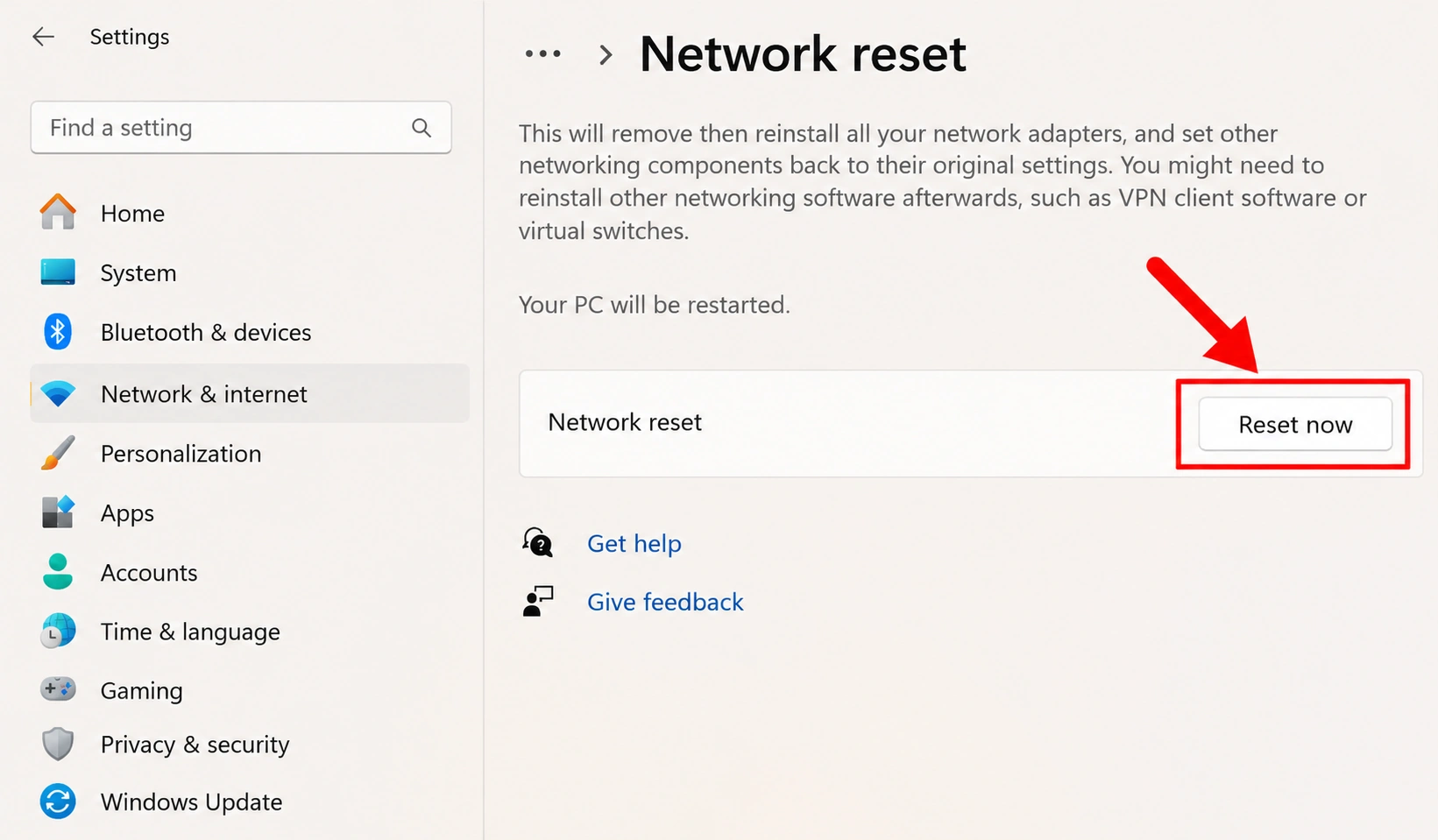
Under More settings, select Network reset.
Read the information about what will change.
Only if you decide to proceed, click Reset now and confirm the action.
Windows 10
Press Windows + I to open Settings.
Select Network & Internet.
Open Status.
Select Network reset.
Review the warning and follow the on-screen instructions if you decide to continue.
Once the network reset is complete and Windows has restarted, reconnect to your network if necessary and test Chrome again.
If the problem affects only one website, a full network reset is usually not the appropriate next step.
For additional troubleshooting guidance and information about the effects of a network reset, see Microsoft's guide to fixing Wi-Fi connection issues in Windows. Network reset should be considered only when simpler troubleshooting steps have failed and the problem appears to involve your computer's network configuration.
What If ERR_CONNECTION_RESET Still Appears?
If you've tried the relevant steps and the error continues, use what you've learned from testing to narrow down the problem.
If only one website fails: The website or the network path to its server may be responsible. Try again later or contact the website's support team.
If the website works in another browser: Focus on Chrome-specific settings, extensions, and updates.
If multiple browsers fail on one computer: Investigate the computer's networking configuration, VPN, proxy, or security software.
If multiple devices fail on the same Wi-Fi: Contact your internet service provider, especially if other websites are also affected.
If the issue occurs only on a work or school network: Ask your IT administrator to check whether the connection is being blocked or interrupted.
Avoid repeatedly resetting settings when you haven't established that the problem is on your device.
Frequently Asked Questions
Is ERR_CONNECTION_RESET a Chrome problem?
Not necessarily. Chrome displays the error when a connection is reset, but the cause may be in the browser, your computer, your network, an intermediary service, or the website's server.
Can ERR_CONNECTION_RESET happen when the internet is working?
Yes. You may be able to open other websites while one particular connection fails.
Does clearing Chrome's cache fix ERR_CONNECTION_RESET?
It can help in some cases, but it isn't a universal solution. If the connection is being interrupted by a VPN, firewall, network problem, or remote server, clearing cached files may make no difference.
Is ERR_CONNECTION_RESET the same as ERR_CONNECTION_TIMED_OUT?
No. A connection reset indicates that a connection was unexpectedly terminated. A timeout generally indicates that a connection or operation didn't complete within the allowed time.
The underlying causes can overlap, but the errors describe different failures.
Will resetting my network delete personal files?
A Windows network reset does not normally delete personal documents or photos. However, it can remove network adapter configurations and require you to set up some network-related software or connections again.
Should I reinstall Chrome?
Usually not as a first step. Check whether the problem affects other browsers, extensions, VPN settings, and your network before considering reinstalling Chrome.
Final Thoughts
ERR_CONNECTION_RESET can be frustrating because the error message doesn't identify the exact cause.
The most effective approach is to narrow down the problem before changing settings. Start by checking whether other websites work, testing Incognito mode, reviewing extensions, and comparing connections across browsers or devices.
Only move to advanced Windows network troubleshooting when the evidence points toward a broader networking issue.
A useful rule: If only one website fails, investigate that website first. If many websites fail across multiple browsers, focus on the network and computer.